Introduction
Export your AI Studio conversations — whole chats or single replies — to Word, PDF, Google Docs, Notion, Markdown or Print, with options to keep only the answers, only your prompts, or both.
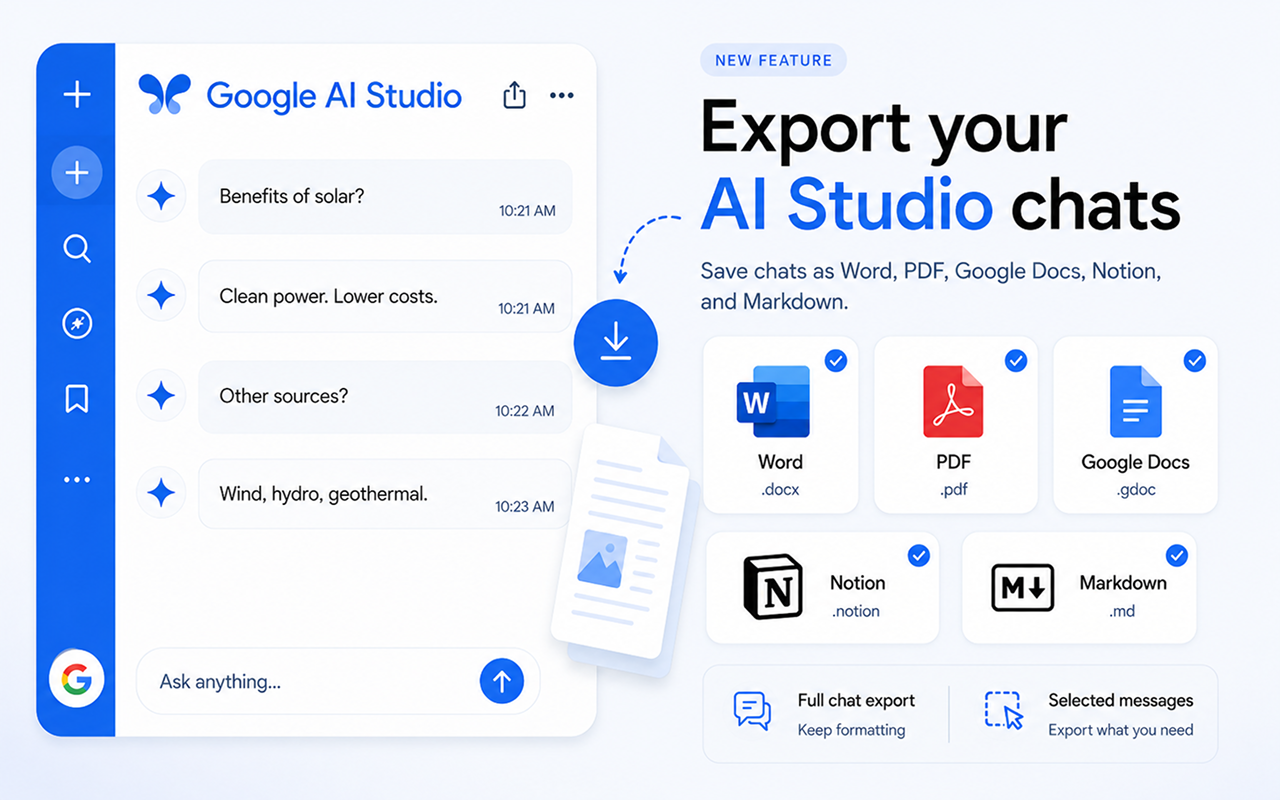
🔧 Working with AI Studio
In AI Studio the system instruction and the prompt structure are half the work, so an export that only captures replies loses the part worth keeping.
System instructions are included
The system instruction is exported with the conversation, so the prompt that shaped the output is documented next to it.
Turn structure is preserved
Every user turn and model response exports in order and clearly labelled, which keeps a long prompt-engineering session readable.
Structured output stays formatted
Code blocks keep their language, and JSON or other structured responses export as proper formatted blocks rather than wrapped plain text.
A document beats a screenshot
The result is something a colleague can read, comment on and edit, which a screenshot of the AI Studio panel never is.
✨ Key Features
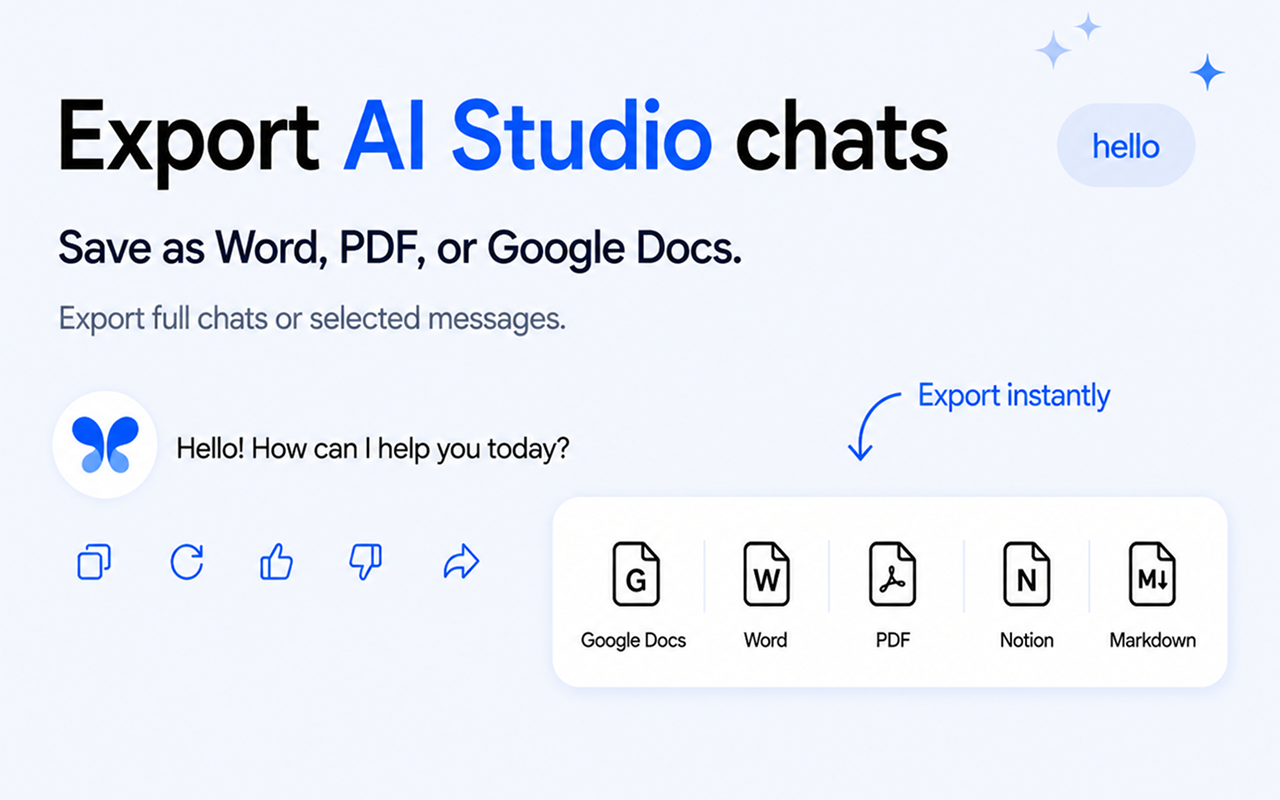
Export AI Studio conversations to multiple formats
6 Export Formats
Word, PDF, Google Docs, Notion, Markdown and Print — one click each.
Content Filtering
Keep answers only, prompts only, or the full conversation.
Selective Export
Export the whole chat or just one response.
Saved Settings
Your preferences are remembered for every future export.
⚙️ Export Modes
Pick how much of the conversation to include. Settings are saved automatically.
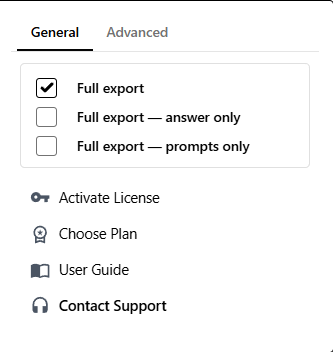
Configure your export settings
Answers only
Full conversation, keeping only AI Studio's replies — your prompts are removed.
Prompts only
Full conversation, keeping only your questions — AI Studio's replies are removed.
Single answer
Export one AI Studio reply on its own, without the question before it.
Everything
Leave all options off to export prompts and answers together.
📄 Supported Formats
Microsoft Word (.docx)
Fully editable documents for formatting, sharing and Office/Google Docs use.
Fixed layout that looks identical everywhere — ideal for printing and archiving.
Google Docs
Saved straight to your Google Drive for cloud backup and collaborative editing.
Markdown (.md)
Version-control-friendly plain text for GitHub, Obsidian, Logseq and static site generators.
Opens the browser print dialog laid out like the PDF — print on paper or "Save as PDF", no download needed.
Notion
Pushes a conversation into a Notion database — headings, lists, code, tables and inline math kept as native blocks. One-time setup →
🔗 Notion Setup
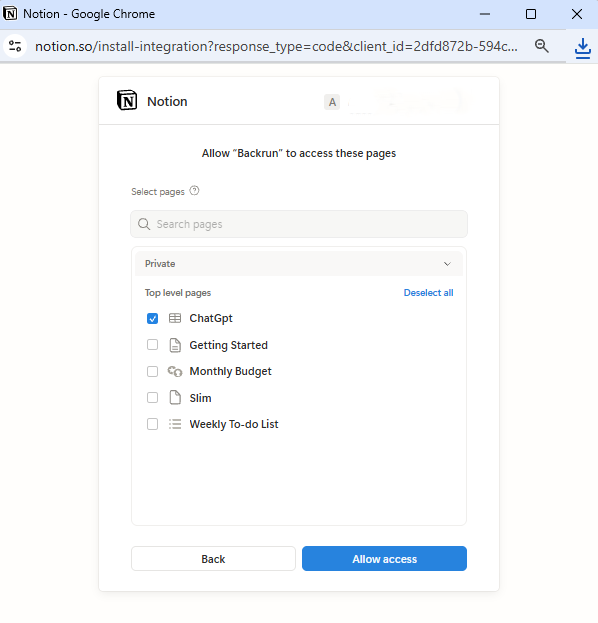
Notion exports need a one-time OAuth connection. The Notion API can only write into databases, so share at least one during setup.
1. Connect
- Open the extension Settings (⚙️) → Advanced tab
- On the "Notion not connected" card, click Connect
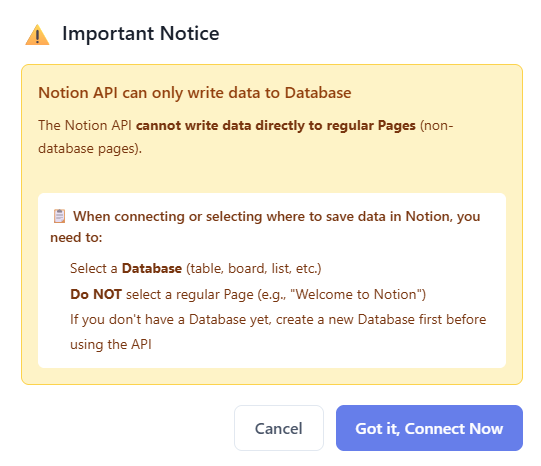
2. Share a database (not a page)
- On the OAuth screen, pick at least one database (table, board, list, gallery or calendar)
- Plain pages like "Welcome to Notion" won't work — the API can't write into them
- No database yet? Create one in Notion first, then come back
3. Choose a default & export
- Pick the default database from the dropdown on the card
- Click Export to Notion on any conversation or message
- Add more databases: use the link icon (🔗) in settings — no need to disconnect
- Switch default: just pick another from the dropdown
- Disconnect anytime: use the unlink icon; tokens are removed from your browser
🎨 Style Settings
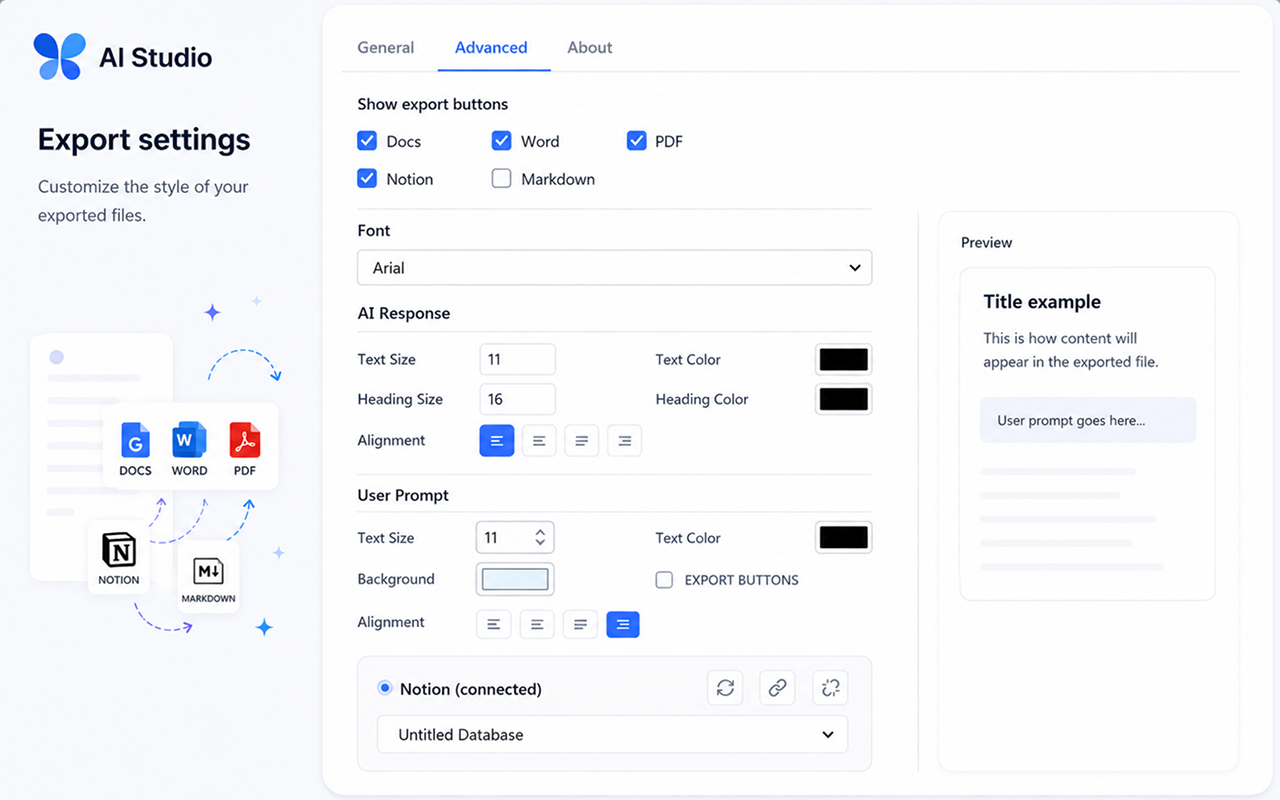
Customize the look of your exported files
Button Visibility
Show only the format buttons you actually use on the AI Studio toolbar.
Export buttons User Prompt
Inject the same export buttons (Word, PDF, Docs, Notion, Markdown, Print) next to your prompt's Edit/Copy toolbar so you can export just one question. Off by default.
Fonts & Colors
Set font family, text/heading sizes and custom colors for text, headings and prompts.
Text Alignment
Left, center, right or justify for the whole document.
🔑 License Activation
Activate in 3 steps
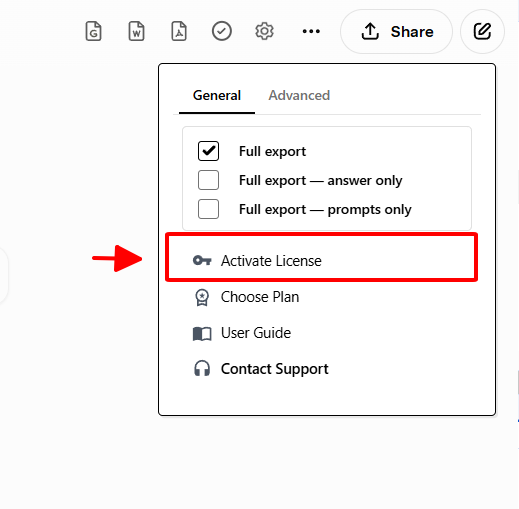
- Open AI Studio and click the license icon (🔑) on the extension toolbar
- Paste the license key from your purchase email (no extra spaces)
- Click Activate — a success message confirms it
- 1 license = 1 activation. It auto-syncs to your other devices when you're signed in to the same Google account with Chrome Sync on. If Chrome Sync is off, the license stays only on the device where you activated it. Manually re-activating the same key on unrelated devices is blocked.
- Your key is stored in your browser via chrome.storage.sync — we never see it.
- Stay online during activation.
- Trouble? Email anuis2508@gmail.com or visit Contact Support.
🚀 Quota & Tracking
Free Plan
Monthly quota with separate counters for full-conversation and single-response exports. Resets at the start of each month.
Premium Plan
Unlimited exports across all formats, on multiple devices with one license.
📖 Quick Start
- Open a AI Studio conversation in your browser
- (Optional) Open Settings (⚙️) and pick an export mode
- Click a format button (Word, PDF, Google Docs, Notion, Markdown, Print) on the toolbar — or next to a single message
- Your file is generated using the saved settings
💼 Use Cases
Answer-only document
Enable Answers only → export the full chat to Word.
Save one reply
Enable Single answer → export that specific response.
Collect your questions
Enable Prompts only → export the full chat.
Archive for the long term
Export to PDF with your preferred filter.
Notion knowledge base
Connect Notion → Export to Notion; math, tables and code are preserved.
Version-control research
Export to Markdown and commit it alongside your code.
💳 Pricing
Choose a plan
Free has monthly limits; paid plans are unlimited. See current prices.
Free
- 3 full-chat + 5 single-message exports / month
- All 6 formats
Plus
- or $60/year — save 17%
- Only for AI Studio
- Unlimited exports
Pro
- or $90/year — save 17%
- One key for all 9 exporters
- Unlimited exports
Email: anuis2508@gmail.com · Contact support
🚧 Troubleshooting AI Studio exports
AI Studio differs from a normal chat interface, which leads to a few specific questions.
The system instruction is missing
The system instruction panel has to be expanded for its content to be on the page at export time. Open it before exporting.
Model parameters are not in the file
Temperature, top-p and similar settings live in the right-hand configuration panel rather than in the conversation itself, so they are not part of the exported document. Note them separately if you need them recorded.
Structured output lost its formatting
JSON responses export as formatted blocks when they are rendered as a code block. If the model returned JSON as ordinary prose, there is no block for the export to preserve — ask for it inside a fenced block.
Export buttons are missing on a new prompt
Buttons attach once there is at least one model response on the page. Run the prompt first, then the buttons appear.
❓ FAQ
Are settings saved automatically?
Yes — they apply to every future export until you change them, across all conversations.
Can I export both questions and answers?
Yes — leave all export modes off and the file includes both.
What if I hit the free limit?
Wait for next month's reset, or upgrade for unlimited exports. See Pricing.
Can I use my license on multiple devices?
Yes, when both of these are true:
- You are signed in to the same Google account on every device, and
- Chrome Sync is turned on.
The license key is synced through Chrome Sync. If Chrome Sync is off, the license stays only on the device where you activated it and will not carry over. In that case the license only supports one activation (one device).
For security and to prevent abuse, sharing a license across devices is only supported through Chrome Sync — manually re-activating the same key on unrelated devices is blocked, because there's no reliable way to verify that multiple activations belong to the same person.
Is formatting preserved?
Yes — code blocks, bold/italic, lists and tables carry over to all formats. Notion also keeps inline math (LaTeX) as equation blocks.
How do I connect Notion?
Settings → Advanced → Connect, then share at least one database (not a page). Full steps in Notion Setup.
Why does Notion need a database?
The Notion API can only write into databases. Sharing only plain pages leaves the dropdown empty.
Where do I get support?
Email anuis2508@gmail.com or visit Contact Support.
Does the export include my system instruction?
Yes. It is exported alongside the conversation, so the prompt that produced the output is recorded with it.
Are prompts and responses kept apart?
Yes. Every turn exports in order and is clearly labelled.
How is JSON output handled?
Structured responses export as formatted blocks with their language preserved, not as wrapped plain text.