
Export your
NotebookLM answers
in one click
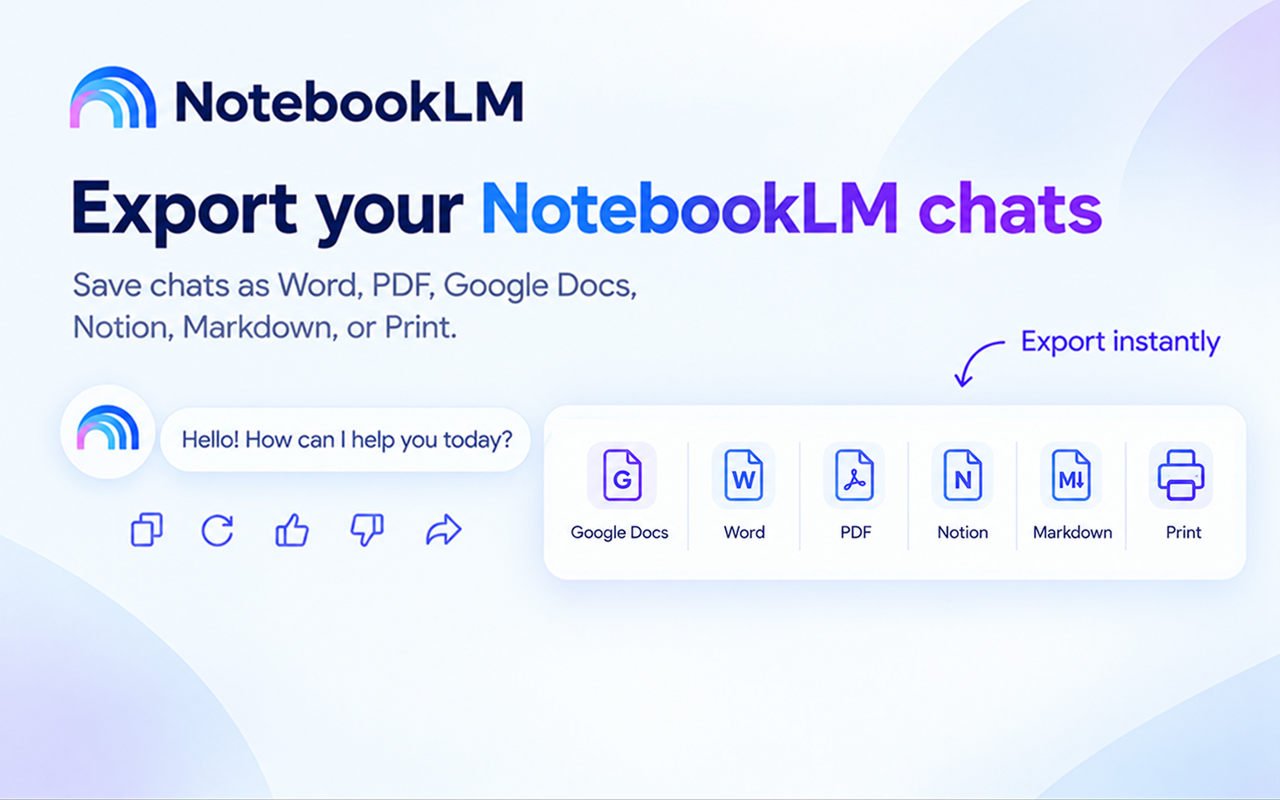
Save full chats or selected responses as Word, PDF, Google Docs, Notion, or Markdown — directly from Google NotebookLM. No copy-paste, no hassle.
Solar vs. wind at a glance
- Solar — predictable daytime output, low maintenance
- Wind — higher capacity factor, works at night
Net present value:
def yearly_cost(kwh, rate=0.12):
    return round(kwh * rate, 2)
Everything you need to save your NotebookLM answers
Powerful export tools built directly into Google NotebookLM's interface.
Full Chat Export
Export your entire NotebookLM chat with perfect formatting — your questions, the answers, tables, and code blocks all preserved.
Selected Responses
Pick only the responses that matter. Export a single answer or a subset of the chat without any extra clutter.
Customize Style
Adjust fonts, colors, heading sizes, text alignment, and more through the advanced settings panel before exporting.
One-Click Export
Six export buttons appear right in the NotebookLM interface. Click once and your chat is saved instantly — no extra steps needed.
Copy-paste vs. Chat Exporter
Pasting a NotebookLM answer into a document loses most of what made it useful.
Up and running in seconds
Three simple steps to export any NotebookLM chat.
Install the extension
Add Chat Exporter for NotebookLM to Chrome from the Web Store.
Open any NotebookLM chat
Navigate to notebooklm.google.com and open the chat you want to export. The export buttons appear automatically.
Click to export
Choose Word, PDF, Google Docs, Notion, or Markdown. Your thread is exported instantly with full formatting preserved.
No need to leave the page or open extra menus. Chat Exporter for NotebookLM adds subtle export buttons directly inside each answer. Just click the format you want.
Six formats. Perfect output every time.
Your NotebookLM chats, beautifully formatted exactly where you need them.
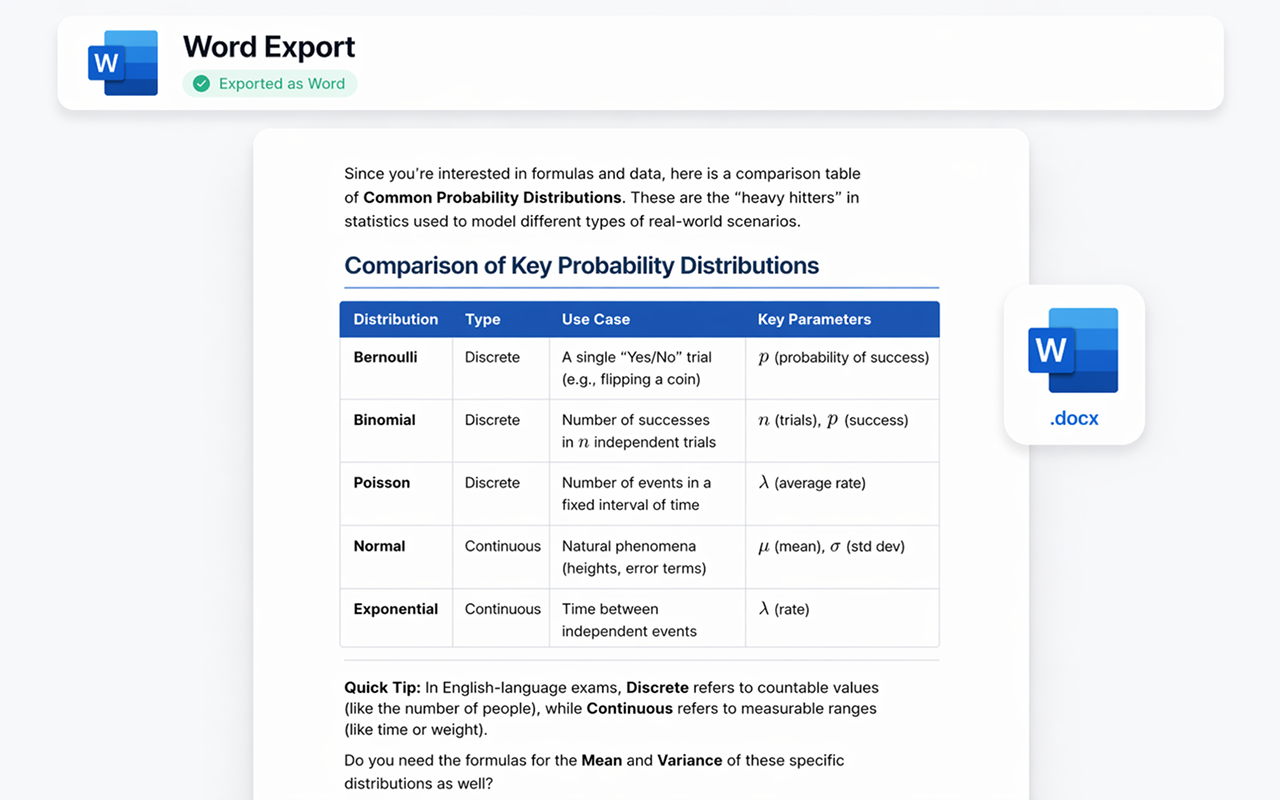
Export as Microsoft Word
Your NotebookLM chat becomes a professionally formatted .docx file. Headings, bold text, tables, and code blocks are all preserved — ready to edit, share, or print.
- ✓ Full formatting preserved
- ✓ Editable .docx file
- ✓ Custom fonts & colors
- ✓ Instant download
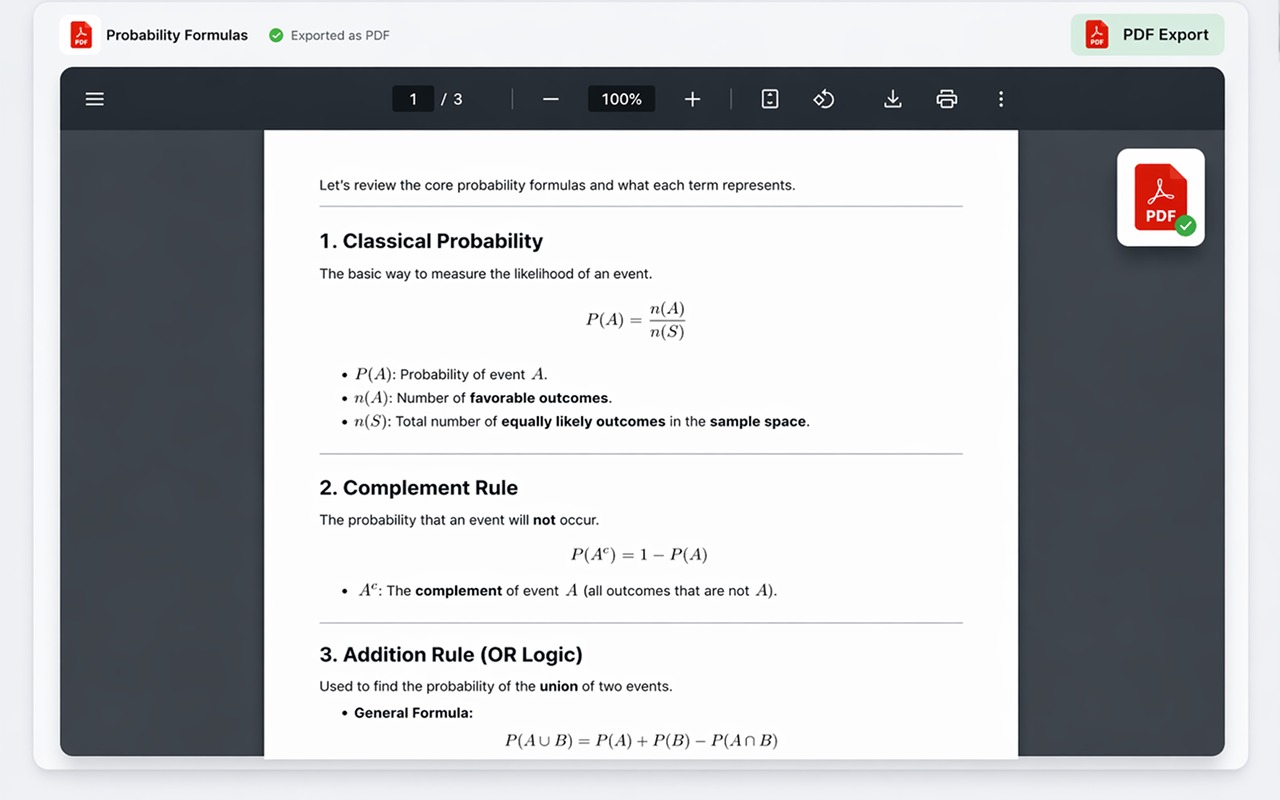
Export as PDF
Generate a pixel-perfect .pdf ready for sharing, printing, or archiving. The layout and formatting stay exactly as you see them in NotebookLM — no surprises.
- ✓ Print-ready quality
- ✓ Faithful layout
- ✓ Multi-page support
- ✓ Instant download
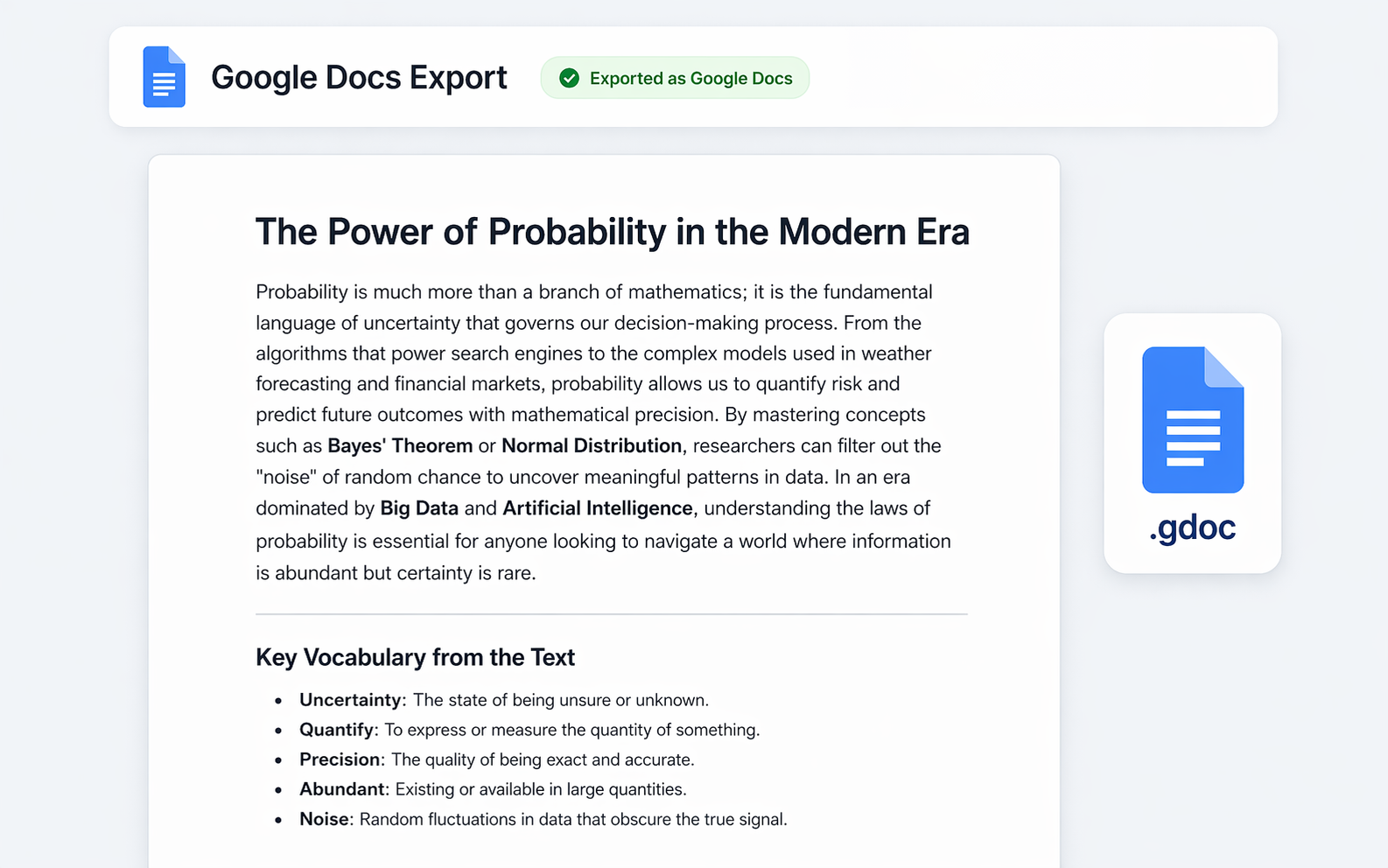
Export to Google Docs
Send your NotebookLM chat straight to Google Drive as a collaborative document. Perfect for teams, students, or anyone living in the Google ecosystem.
- ✓ Saved to Google Drive
- ✓ Fully editable
- ✓ Easy to share
- ✓ Works with your account
Export to Notion
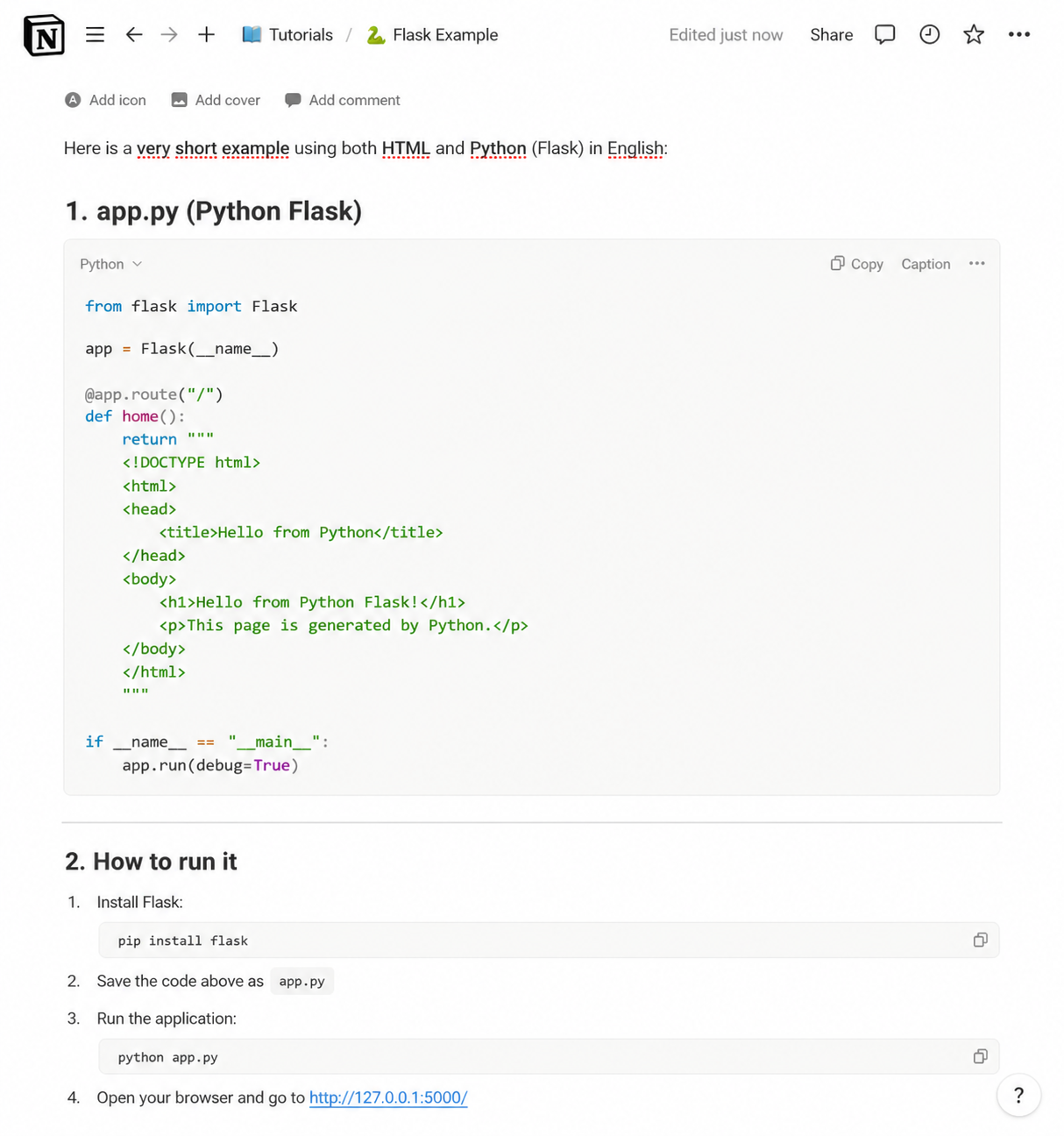
Push your NotebookLM chat directly into your Notion workspace as a new page. Headings, toggles, code blocks, and lists all become native Notion blocks — ready to drop into any database or doc.
- ✓ Native Notion blocks
- ✓ Code blocks with language
- ✓ Choose target page or database
- ✓ Connect once, export anytime
Export as Markdown
Get a clean .md file with all the structure intact — perfect for GitHub, Obsidian, VS Code, static-site generators, or any tool that speaks Markdown.
- ✓ Clean, portable .md file
- ✓ Fenced code blocks
- ✓ Works with Obsidian, GitHub, etc.
- ✓ Copy-to-clipboard option
Export as JSON
Download the chat as structured .json in standard API message format (role and content). Perfect for developers building datasets, data pipelines, or fine-tuning AI models.
Need plain text instead? Every chat can also be saved as TXT (plain text), free and without counting toward your limit.
- ✓ Standard message format
- ✓ Role & content preserved
- ✓ Great for datasets & pipelines
- ✓ Ready for fine-tuning workflows
Fine-tune every export
Use the advanced settings panel to customize fonts, text sizes, heading colors, alignment, and which export buttons are visible. Make every export match your style.
Get the Extension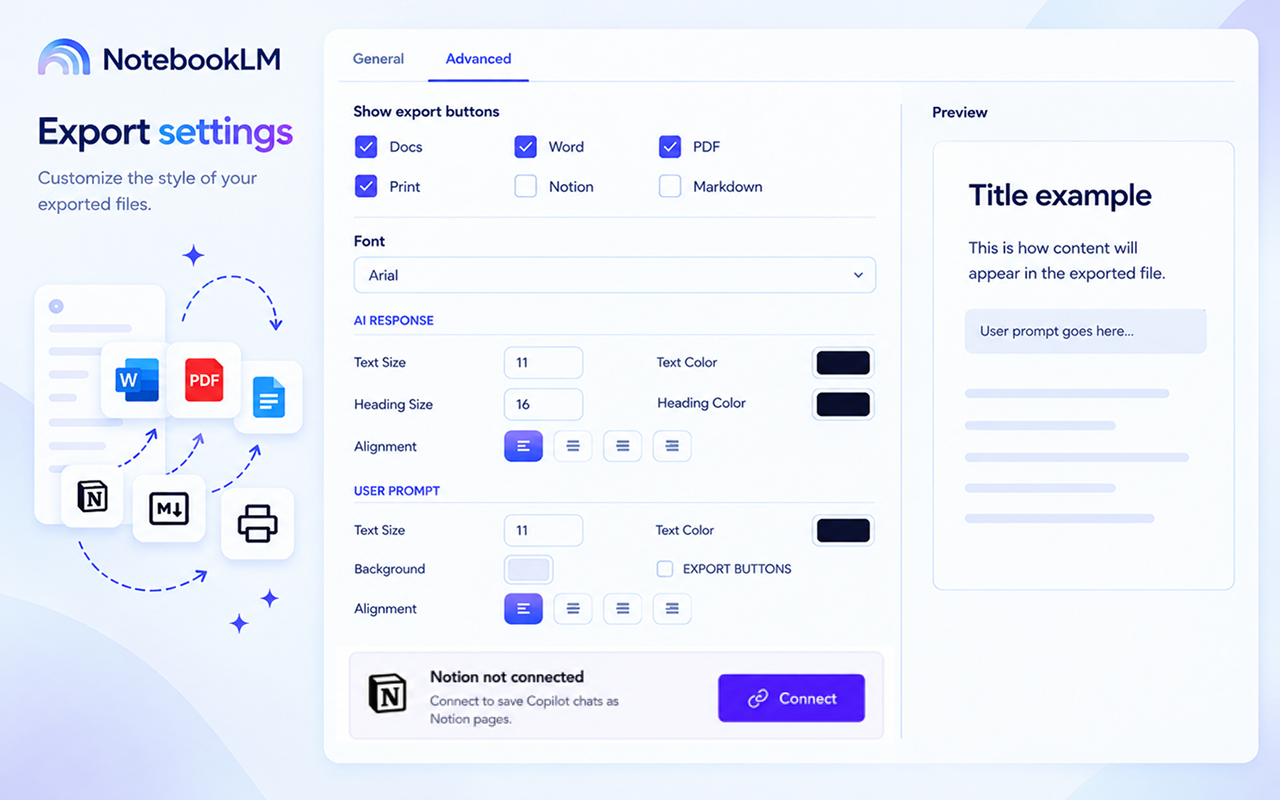
Built around how NotebookLM answers
NotebookLM grounds every answer in your sources and wraps it in an interactive interface. A good export keeps the answer and drops the parts that only work inside NotebookLM.
No dangling citation numbers
NotebookLM's numbered citation chips open a passage in its source panel. In a document they would point at nothing, so the export removes them. To keep sources, ask NotebookLM to name them in the answer itself.
Question and answer order preserved
Every question you asked and every answer NotebookLM gave is exported in sequence and clearly labelled, so a long research session stays readable.
Tables, lists and code blocks
Tables keep their rows and columns, nested lists keep their levels, and code blocks keep their language instead of collapsing into plain text.
Share your research, not a screenshot
The result is a document a colleague can read, comment on and edit, which is what a screenshot of the NotebookLM panel can never be.
Works with every AI you use
Plus covers NotebookLM. Pro unlocks all 9 exporters with a single license key.
Simple, transparent pricing
Start free. Upgrade only when you need unlimited exports.
Try it on your everyday chats.
Free plan, no card needed
- 3 full-chat exports / month
- 5 single-message exports / month
- All 6 export formats
- Math, tables & code kept
- Unlimited exports
- Works on all 9 AIs
Unlimited exports for the AI you use most.
$60 a year $72
- Unlimited exports
- All 6 export formats
- Math, tables & code kept
- For NotebookLM only
- The other 8 exporters
One key for every AI you use.
$90 a year $108
- Everything in Plus
- One key for all 9 exporters
- Unlimited exports on every AI
- ChatGPT, Claude, Gemini, Grok & more
Frequently asked questions
Does it work with all NotebookLM chats?
Yes! The extension works on notebooklm.google.com and integrates seamlessly with all your chats — across every notebook in your account.
Is my data safe?
Markdown and JSON are built inside your browser and never leave it. PDF, Word, Google Docs, Notion and Print go through our server: it builds the file (or passes the page on to Notion), returns it to you and deletes it — the conversation itself is not stored. For each export we record the time, format, file name, account, IP address and browser; that log is what the monthly allowance counts.
Do I need an account for Notion or Google Docs?
For Google Docs you'll sign in once with your Google account so the document can be saved to your Drive. For Notion you'll connect your Notion workspace once. Word, PDF, and Markdown exports work without signing in.
Can I export only part of a chat?
Yes! You can select specific responses to export instead of the entire thread. Perfect for saving only the parts that matter to you.
Are the source citations included?
No. NotebookLM's numbered citation chips only work inside NotebookLM, where they open the source passage, so the export removes them rather than leave numbers that point nowhere. To keep sources in the document, ask NotebookLM to name the source in its answer — for example “give the document title for each point” — and that text exports like any other.
Are my questions and NotebookLM's answers kept separate?
Yes. Every turn is exported in order and clearly labelled, which keeps a long research session readable.
How are tables and code blocks handled?
Tables export as real tables, lists keep their nesting, and code blocks keep their language instead of being flattened into plain text.
Start exporting your NotebookLM answers today
Works instantly on notebooklm.google.com.
Add to ChromeAvailable on Chrome Web Store