Introduction
Export your Gemini conversations — whole chats or single replies — to Word, PDF, Google Docs, Notion, Markdown or Print, with options to keep only the answers, only your prompts, or both.
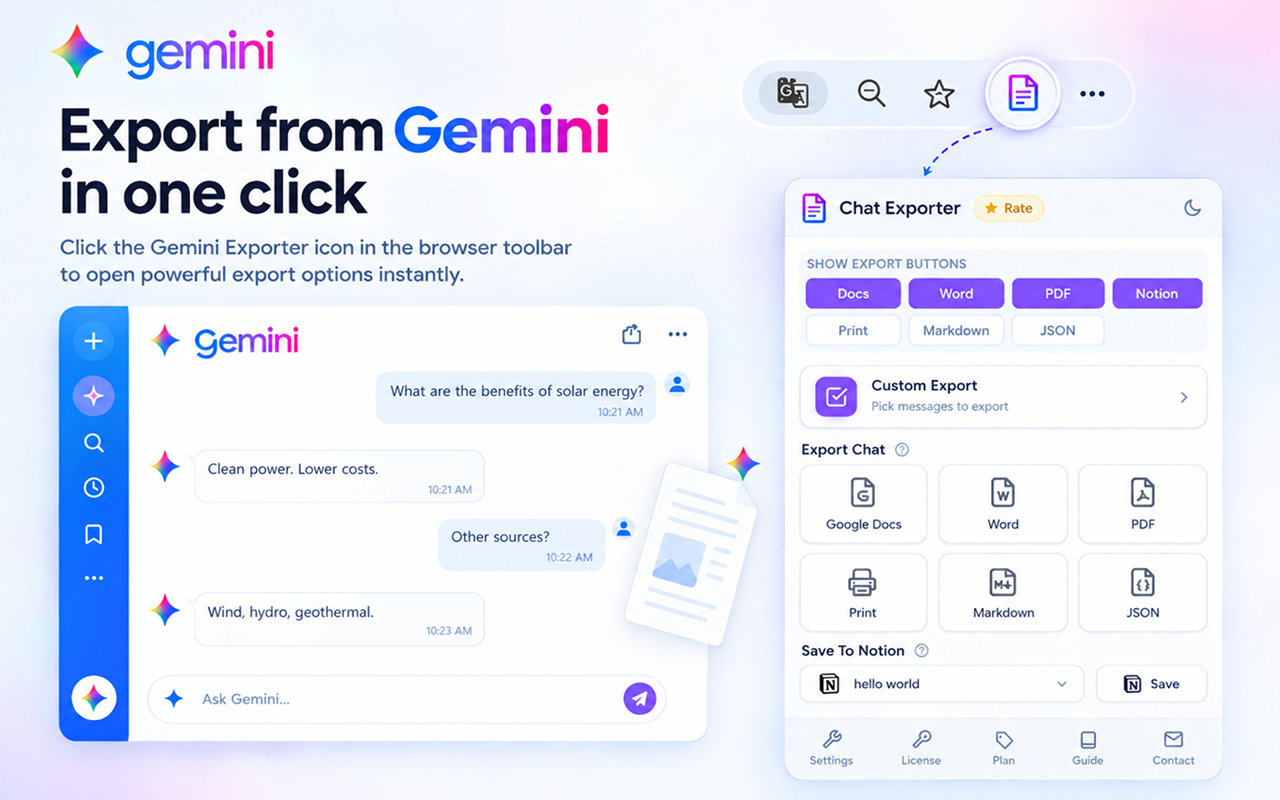
🔧 Working with Gemini
Gemini keeps long-form work in a separate Canvas panel, which is the part most people struggle to get out cleanly.
Canvas has its own export button
When a Canvas document is open, an export button appears in the Canvas toolbar itself. The document exports with its own headings, lists and code, separately from the surrounding conversation.
KaTeX maths becomes an equation
Gemini renders maths with KaTeX. On export it is converted into a native Word or Google Docs equation object, so it stays sharp and editable.
Gems work like any other chat
Conversations with a custom Gem export the same way as standard ones. Nothing extra to set up.
Sources come along
When an answer is grounded in search results, the linked sources are carried into the exported document rather than being dropped.
✨ Key Features
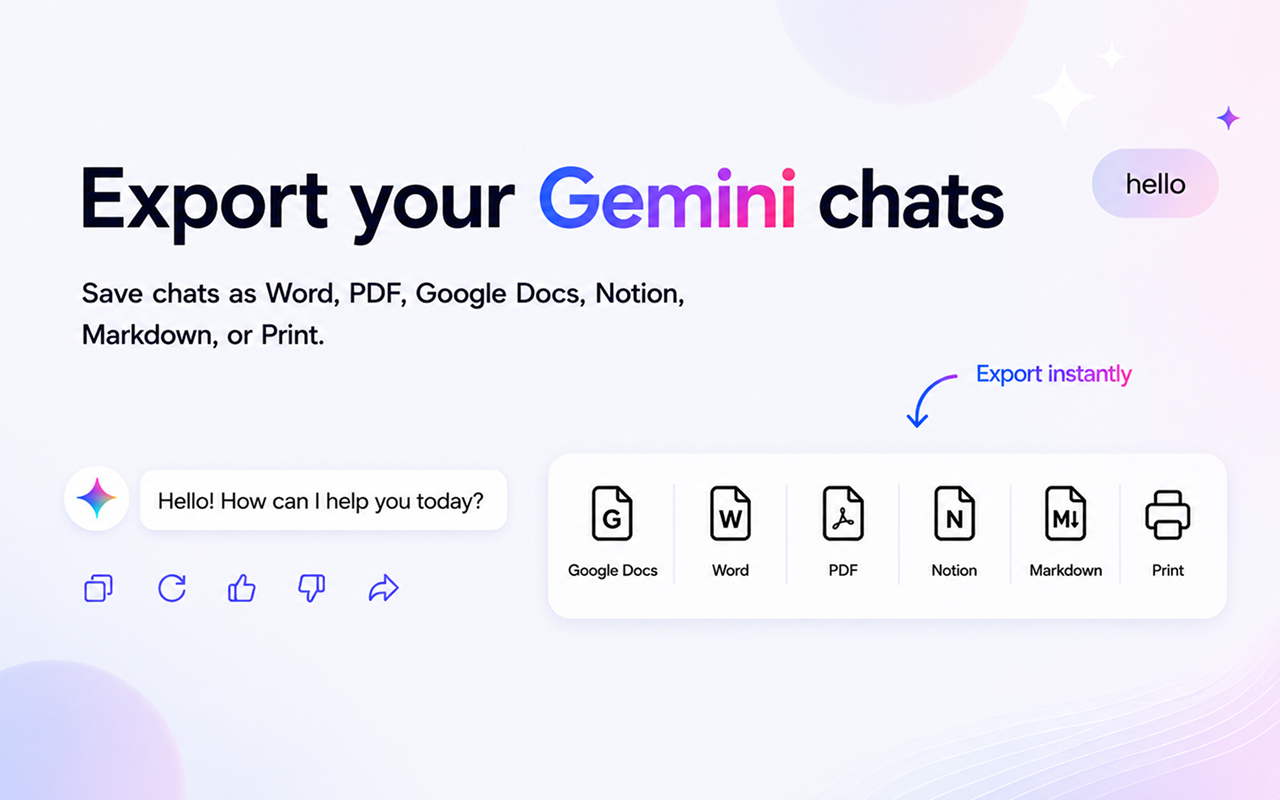
Export Gemini conversations to multiple formats
6 Export Formats
Word, PDF, Google Docs, Notion, Markdown and Print — one click each.
Content Filtering
Keep answers only, prompts only, or the full conversation.
Selective Export
Export the whole chat or just one response.
Saved Settings
Your preferences are remembered for every future export.
⚙️ Export Modes
Pick how much of the conversation to include. Settings are saved automatically.
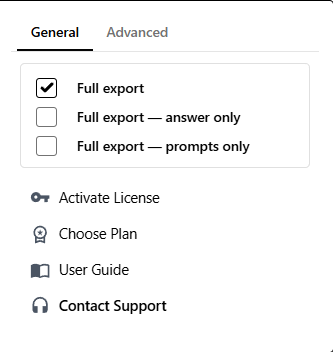
Configure your export settings
Answers only
Full conversation, keeping only Gemini's replies — your prompts are removed.
Prompts only
Full conversation, keeping only your questions — Gemini's replies are removed.
Single answer
Export one Gemini reply on its own, without the question before it.
Everything
Leave all options off to export prompts and answers together.
📄 Supported Formats
Microsoft Word (.docx)
Fully editable documents for formatting, sharing and Office/Google Docs use.
Fixed layout that looks identical everywhere — ideal for printing and archiving.
Google Docs
Saved straight to your Google Drive for cloud backup and collaborative editing.
Markdown (.md)
Version-control-friendly plain text for GitHub, Obsidian, Logseq and static site generators.
Opens the browser print dialog laid out like the PDF — print on paper or "Save as PDF", no download needed.
Notion
Pushes a conversation into a Notion database — headings, lists, code, tables and inline math kept as native blocks. One-time setup →
🔗 Notion Setup
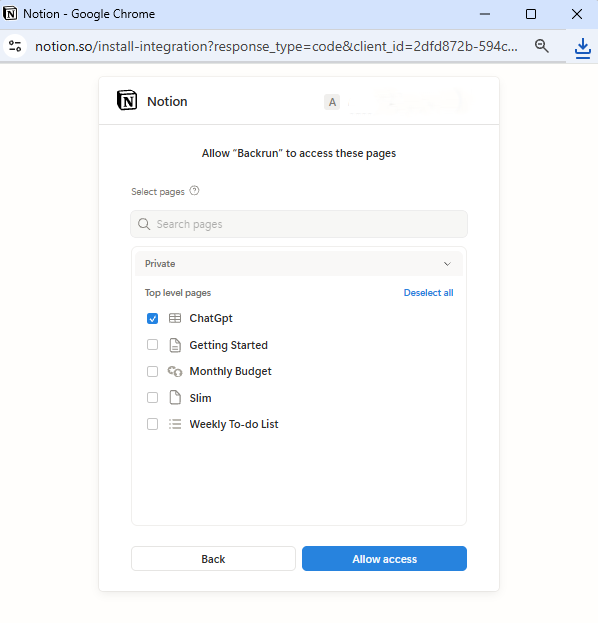
Notion exports need a one-time OAuth connection. The Notion API can only write into databases, so share at least one during setup.
1. Connect
- Open the extension Settings (⚙️) → Advanced tab
- On the "Notion not connected" card, click Connect
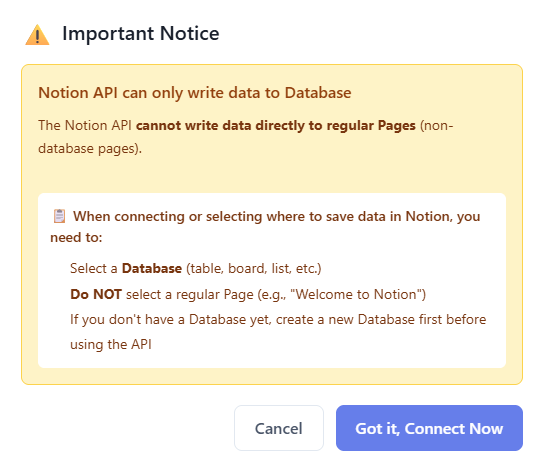
2. Share a database (not a page)
- On the OAuth screen, pick at least one database (table, board, list, gallery or calendar)
- Plain pages like "Welcome to Notion" won't work — the API can't write into them
- No database yet? Create one in Notion first, then come back
3. Choose a default & export
- Pick the default database from the dropdown on the card
- Click Export to Notion on any conversation or message
- Add more databases: use the link icon (🔗) in settings — no need to disconnect
- Switch default: just pick another from the dropdown
- Disconnect anytime: use the unlink icon; tokens are removed from your browser
🎨 Style Settings
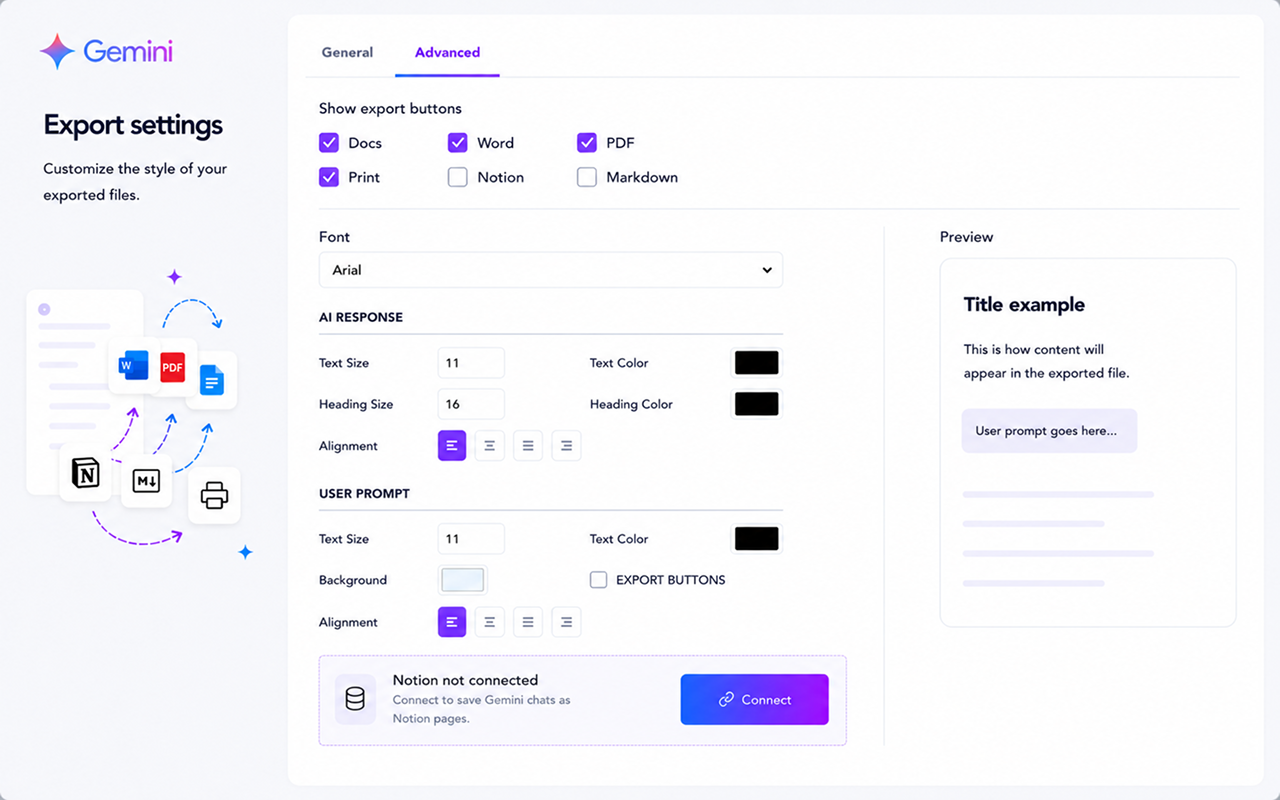
Customize the look of your exported files
Button Visibility
Show only the format buttons you actually use on the Gemini toolbar.
Export buttons User Prompt
Inject the same export buttons (Word, PDF, Docs, Notion, Markdown, Print) next to your prompt's Edit/Copy toolbar so you can export just one question. Off by default.
Fonts & Colors
Set font family, text/heading sizes and custom colors for text, headings and prompts.
Text Alignment
Left, center, right or justify for the whole document.
🔑 License Activation
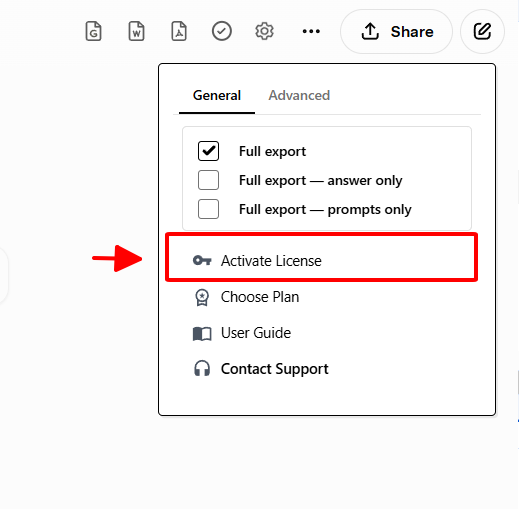
Activate in 3 steps
- Open Gemini and click the license icon (🔑) on the extension toolbar
- Paste the license key from your purchase email (no extra spaces)
- Click Activate — a success message confirms it
- 1 license = 1 activation. It auto-syncs to your other devices when you're signed in to the same Google account with Chrome Sync on. If Chrome Sync is off, the license stays only on the device where you activated it. Manually re-activating the same key on unrelated devices is blocked.
- Your key is stored in your browser via chrome.storage.sync — we never see it.
- Stay online during activation.
- Trouble? Email anuis2508@gmail.com or visit Contact Support.
🚀 Quota & Tracking
Free Plan
Monthly quota with separate counters for full-conversation and single-response exports. Resets at the start of each month.
Premium Plan
Unlimited exports across all formats, on multiple devices with one license.
📖 Quick Start
- Open a Gemini conversation in your browser
- (Optional) Open Settings (⚙️) and pick an export mode
- Click a format button (Word, PDF, Google Docs, Notion, Markdown, Print) on the toolbar — or next to a single message
- Your file is generated using the saved settings
💼 Use Cases
Answer-only document
Enable Answers only → export the full chat to Word.
Save one reply
Enable Single answer → export that specific response.
Collect your questions
Enable Prompts only → export the full chat.
Archive for the long term
Export to PDF with your preferred filter.
Notion knowledge base
Connect Notion → Export to Notion; math, tables and code are preserved.
Version-control research
Export to Markdown and commit it alongside your code.
💳 Pricing
Choose a plan
Free has monthly limits; paid plans are unlimited. See current prices.
Free
- 3 full-chat + 5 single-message exports / month
- All 6 formats
Plus
- or $60/year — save 17%
- Only for Gemini
- Unlimited exports
Pro
- or $90/year — save 17%
- One key for all 9 exporters
- Unlimited exports
Email: anuis2508@gmail.com · Contact support
🚧 Troubleshooting Gemini exports
Gemini has a few quirks worth knowing about, most of them around the Canvas panel.
The Canvas export button is not visible
It lives in the Canvas toolbar, not in the main chat. Open a Canvas document first and the button appears alongside the other Canvas controls. If Canvas is closed, only the conversation-level buttons are available.
Canvas content exported as plain text
This happens if the Canvas was still generating when you exported. Wait until it has finished writing, then export — the structure is read from the rendered document.
Sources are missing from the file
Sources only export when they are visible in the answer. If the sources panel is collapsed, expand it before exporting so the links are present on the page.
Maths shows as a picture instead of an equation
That indicates the maths had not finished rendering with KaTeX at export time. Give the reply a moment to settle and export again to get a real equation object.
❓ FAQ
Are settings saved automatically?
Yes — they apply to every future export until you change them, across all conversations.
Can I export both questions and answers?
Yes — leave all export modes off and the file includes both.
What if I hit the free limit?
Wait for next month's reset, or upgrade for unlimited exports. See Pricing.
Can I use my license on multiple devices?
Yes, when both of these are true:
- You are signed in to the same Google account on every device, and
- Chrome Sync is turned on.
The license key is synced through Chrome Sync. If Chrome Sync is off, the license stays only on the device where you activated it and will not carry over. In that case the license only supports one activation (one device).
For security and to prevent abuse, sharing a license across devices is only supported through Chrome Sync — manually re-activating the same key on unrelated devices is blocked, because there's no reliable way to verify that multiple activations belong to the same person.
Is formatting preserved?
Yes — code blocks, bold/italic, lists and tables carry over to all formats. Notion also keeps inline math (LaTeX) as equation blocks.
How do I connect Notion?
Settings → Advanced → Connect, then share at least one database (not a page). Full steps in Notion Setup.
Why does Notion need a database?
The Notion API can only write into databases. Sharing only plain pages leaves the dropdown empty.
Where do I get support?
Email anuis2508@gmail.com or visit Contact Support.
How do I export a Canvas document?
Open the Canvas panel and use the export button in its toolbar. The Canvas exports on its own, so you are not forced to take the whole conversation with it.
Do the sources under an answer get exported?
Yes. When Gemini grounds an answer in search results, those links travel with the document so it stays checkable.
Does it work with Gems?
Yes. A Gem conversation exports exactly like a normal Gemini chat.