
How to Copy ChatGPT to Word Without Losing Formatting
Why tables, code, lists and equations break when you paste ChatGPT into Word, and how to get a clean .docx in one click instead.
You select a ChatGPT answer, press Ctrl+C, paste into Word and spend the next ten minutes fixing it. Tables collapse into tab-separated text, code loses its monospaced font, numbered lists restart at 1, and equations turn into backslashes. Here is why it happens and how to skip the clean-up.
Why pasting breaks the layout
The clipboard carries whatever HTML the browser decides to hand over, and Word interprets it with its own rules:
- Tables arrive with web styles Word does not understand, so borders, widths and header rows are lost or distorted.
- Code blocks are styled by the web page, not by the HTML itself, so Word sees plain paragraphs.
- Lists come across as separate paragraphs and Word renumbers them.
- Math is drawn by the page from LaTeX. Word receives either the raw LaTeX or a jumble of symbols, never an equation.
- Headings often become bold text instead of real Word headings, so the navigation pane and table of contents do not work.
Paste tricks that help a little
- Paste as plain text (Ctrl+Shift+V in many apps) avoids broken styles, but you lose all formatting.
- Ask ChatGPT for Markdown and convert it yourself. This works for text and lists, but tables and math still need fixing.
Both are fine for a paragraph. For anything with structure, exporting is faster.
Export a single ChatGPT answer
Under every ChatGPT reply the extension adds a small row of export buttons. By default you will see Google Docs, Word and PDF.
- Open the conversation on
chatgpt.com. - Find the answer you want to keep and click the button for the format you need.
- The file downloads (or opens in Google Docs) a few seconds later, named after the chat title.
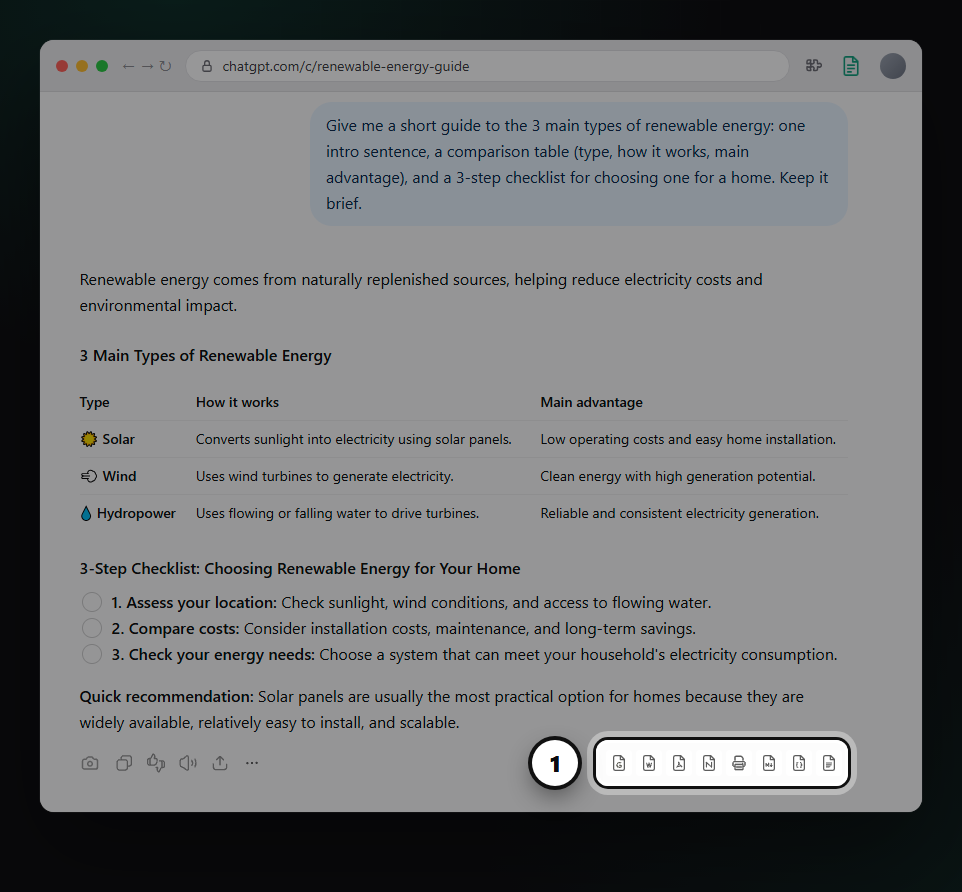
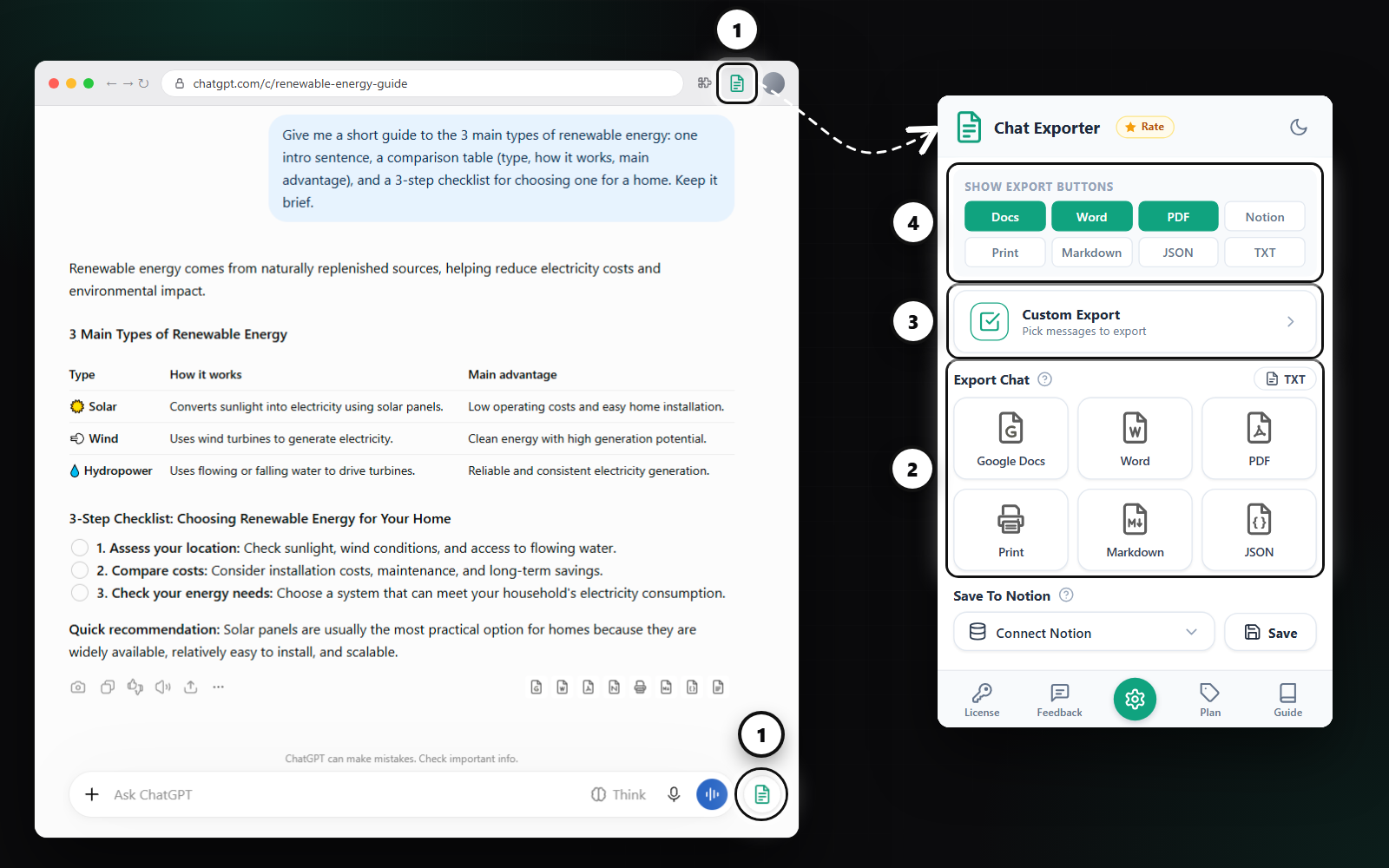
Want Markdown or Notion under every answer too? Open the extension panel and turn them on under Show Export Buttons.
Export the whole ChatGPT conversation
- Click the round Chat Exporter button next to the ChatGPT message box, or the extension icon in the Chrome toolbar.
- Under Export Chat, pick a format. Every prompt and answer goes into one document, in order.
Export only the messages you choose
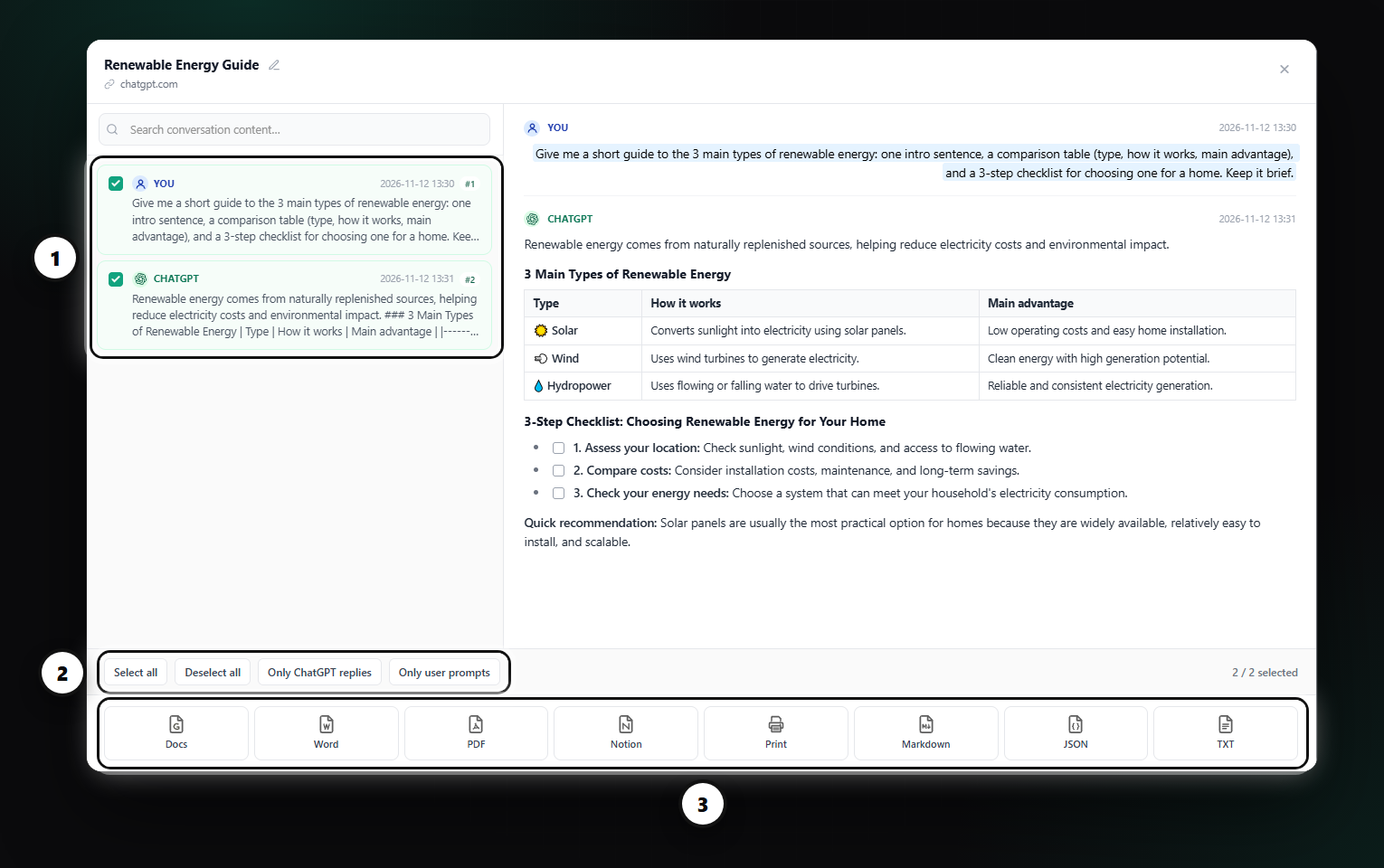
Long chats often contain detours. Custom Export lets you tick just the messages that matter, preview them, and export them together. Quick filters select everything, only your prompts, or only the ChatGPT replies.
What the Word file looks like
- Real Word headings, so you can use the navigation pane and insert a table of contents.
- Tables with borders and a styled header row.
- Code in a monospaced block with its language label.
- Equations as native Word equations you can edit.
- Your prompts styled differently from ChatGPT's answers, so it is clear who said what.
Fonts, sizes, heading colors and the prompt background can be changed in Settings, and every later export uses them.
FAQ
Does it work for very long conversations?
Yes. A full export includes every message, in order, even in long chats.
Can I export only one answer?
Yes. Use the Word button under that answer, or tick several messages in Custom Export.
Is my conversation stored?
Markdown and JSON are built inside your browser. PDF, Word, Google Docs, Notion and Print are built on our server, returned to you and deleted; the conversation itself is not kept.
Free plan: 3 full-chat exports and 5 single-answer exports every month, all formats included. No card needed.