
How to Copy Grok Answers to Google Docs (With Formatting)
Send a Grok answer or a whole conversation straight to Google Docs, with headings, tables and code intact.
Pasting a Grok answer into Google Docs usually means re-doing the formatting: tables lose their structure, code turns into normal text and headings become bold lines. If you are drafting with Grok and finishing in Docs, there is a quicker path.
One-time setup
The first time you export to Google Docs you sign in with your Google account and allow the extension to create documents in your Drive. After that, every export is one click.
Export a single Grok answer
Under every Grok reply the extension adds a small row of export buttons. By default you will see Google Docs, Word and PDF.
- Open the conversation on
grok.com. - Find the answer you want to keep and click the button for the format you need.
- The file downloads (or opens in Google Docs) a few seconds later, named after the chat title.
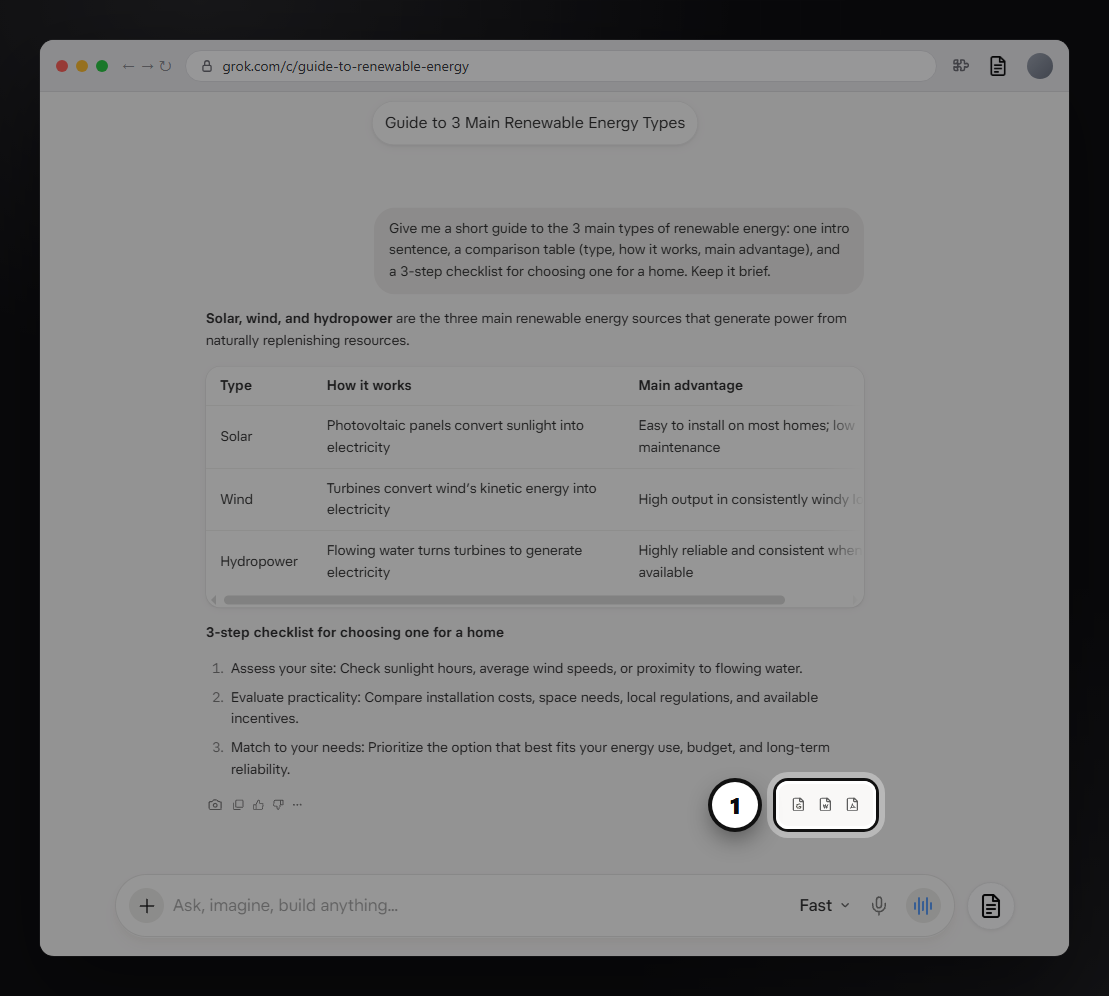
Want Markdown or Notion under every answer too? Open the extension panel and turn them on under Show Export Buttons.
Export the whole Grok conversation
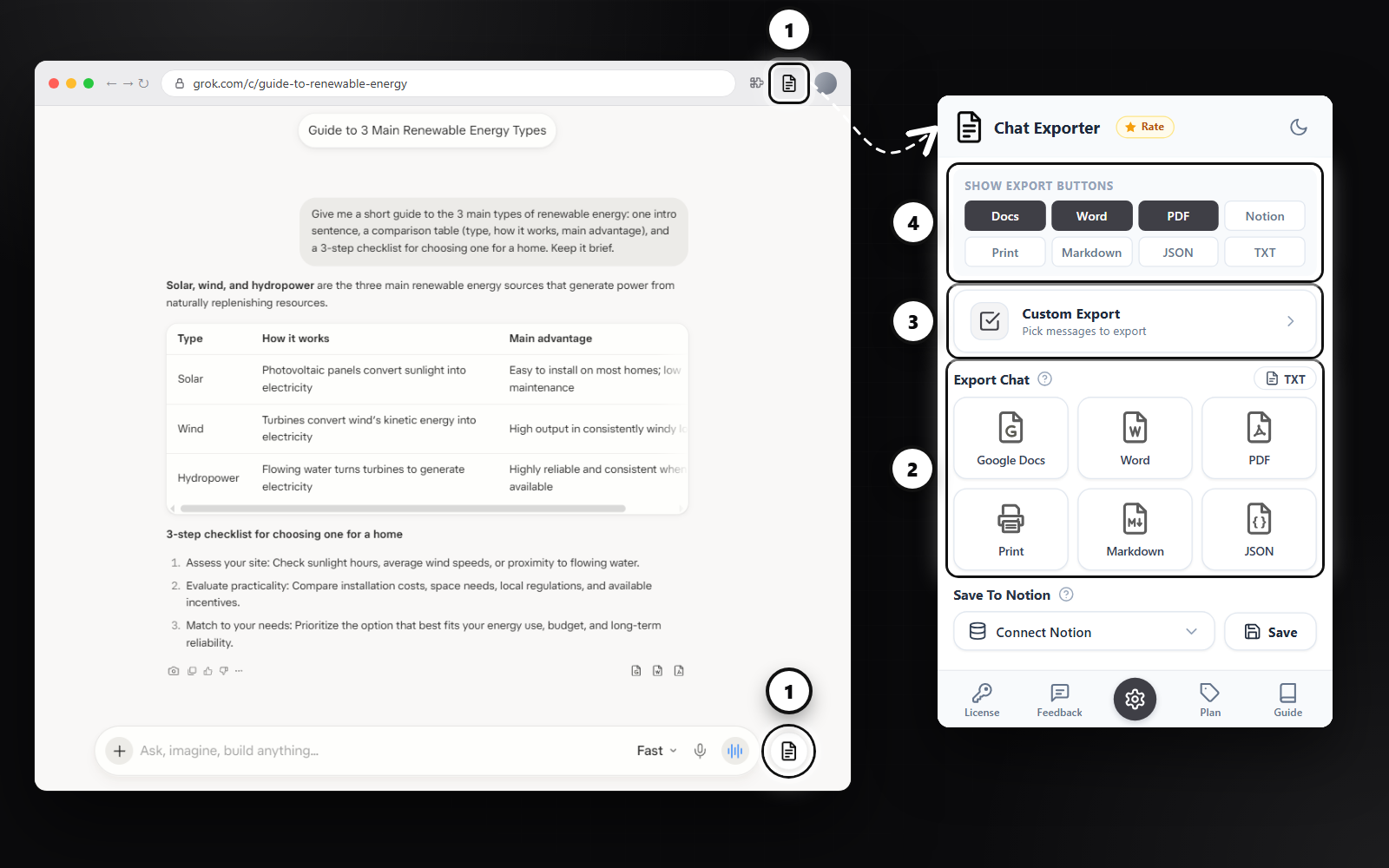
- Click the round Chat Exporter button next to the Grok message box, or the extension icon in the Chrome toolbar.
- Under Export Chat, pick a format. Every prompt and answer goes into one document, in order.
Export only the messages you choose
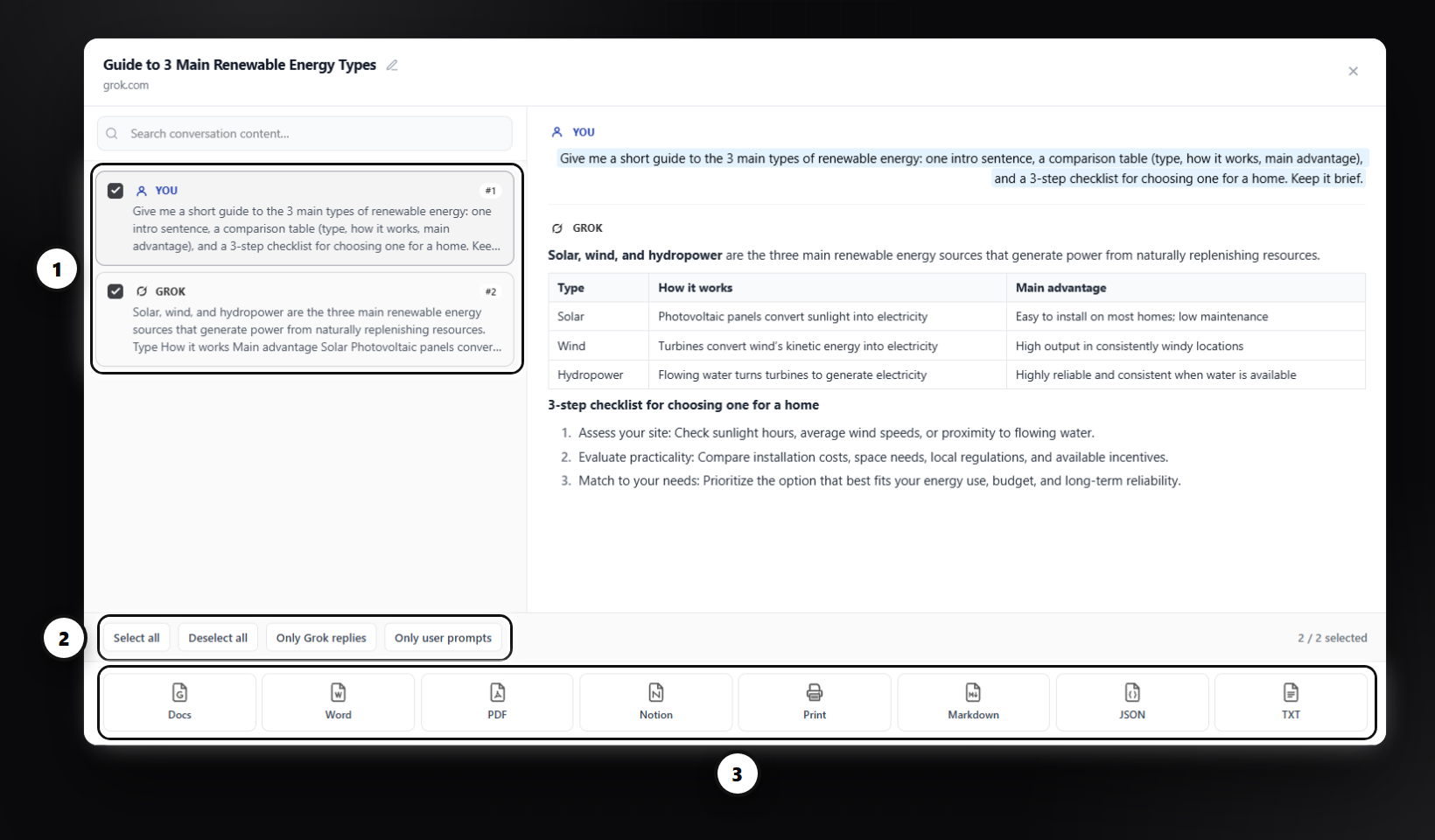
Long chats often contain detours. Custom Export lets you tick just the messages that matter, preview them, and export them together. Quick filters select everything, only your prompts, or only the Grok replies.
Working with the result in Docs
- Headings are real Docs headings, so the document outline in the sidebar works straight away.
- Share the document or turn on suggestion mode for review, as with any Doc.
- Need a file instead? Use Word or PDF; for a quick paste elsewhere, TXT gives you plain text.
FAQ
Where is the document saved?
In your own Google Drive, as a new Google Doc named after the chat.
Can I export the whole Grok conversation to Docs?
Yes. Open the Chat Exporter panel and choose Google Docs under Export Chat.
Is my conversation stored?
Markdown and JSON are built inside your browser. PDF, Word, Google Docs, Notion and Print are built on our server, returned to you and deleted; the conversation itself is not kept.
Free plan: 3 full-chat exports and 5 single-answer exports every month, all formats included. No card needed.