
How to Save DeepSeek Chats to Notion or Google Docs
Keep DeepSeek answers next to the rest of your notes: export a reply or a whole chat to Notion or Google Docs with code, tables, math and Chinese-English text intact.
DeepSeek writes long, dense answers: big code blocks, tables, formulas, often mixing Chinese and English. Those answers are worth keeping, but a chat history is a poor place to keep them. Notion and Google Docs are where notes, specs and study material actually live.
Save DeepSeek to Notion
- Open the Chat Exporter panel on
chat.deepseek.com. - Under Save to Notion, click Connect Notion and allow access to the pages you want to use.
- Pick the destination page or database. You only do this once; later exports go straight there.
Headings, lists, tables, code and math become native Notion blocks, so the content stays searchable and editable instead of sitting in one big text block.
Tip: a Notion database as a DeepSeek log
Save into a database instead of a single page and every export becomes a row. Add properties such as Topic, Project or Status and you get a searchable library of everything you have worked through with DeepSeek, from code snippets to explanations you want to revisit.
Save DeepSeek to Google Docs
The first time you export to Google Docs you sign in with your Google account and allow the extension to create documents in your Drive. After that, the Google Docs button creates a new, formatted document named after the chat. It's the easiest way to share a DeepSeek answer with someone who doesn't use DeepSeek.
Export a single DeepSeek answer
Under every DeepSeek reply the extension adds a small row of export buttons. By default you will see Google Docs, Word and PDF.
- Open the conversation on
chat.deepseek.com. - Find the answer you want to keep and click the button for the format you need.
- The file downloads (or opens in Google Docs) a few seconds later, named after the chat title.
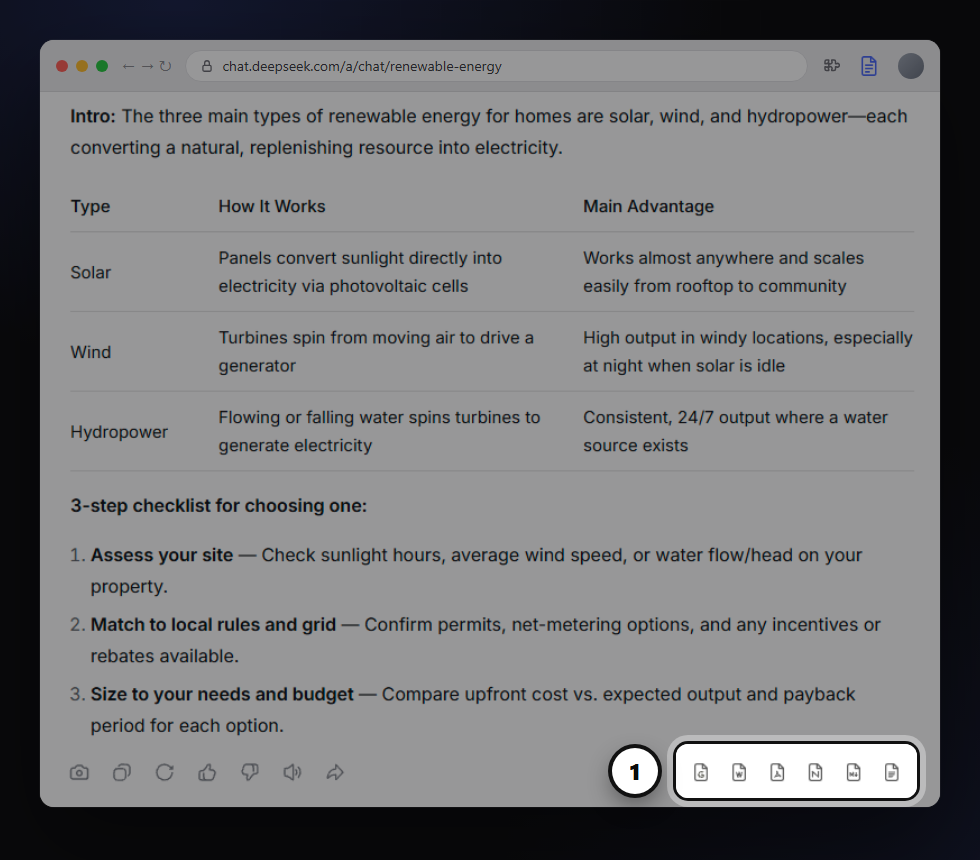
Want Markdown or Notion under every answer too? Open the extension panel and turn them on under Show Export Buttons.
Export the whole DeepSeek conversation
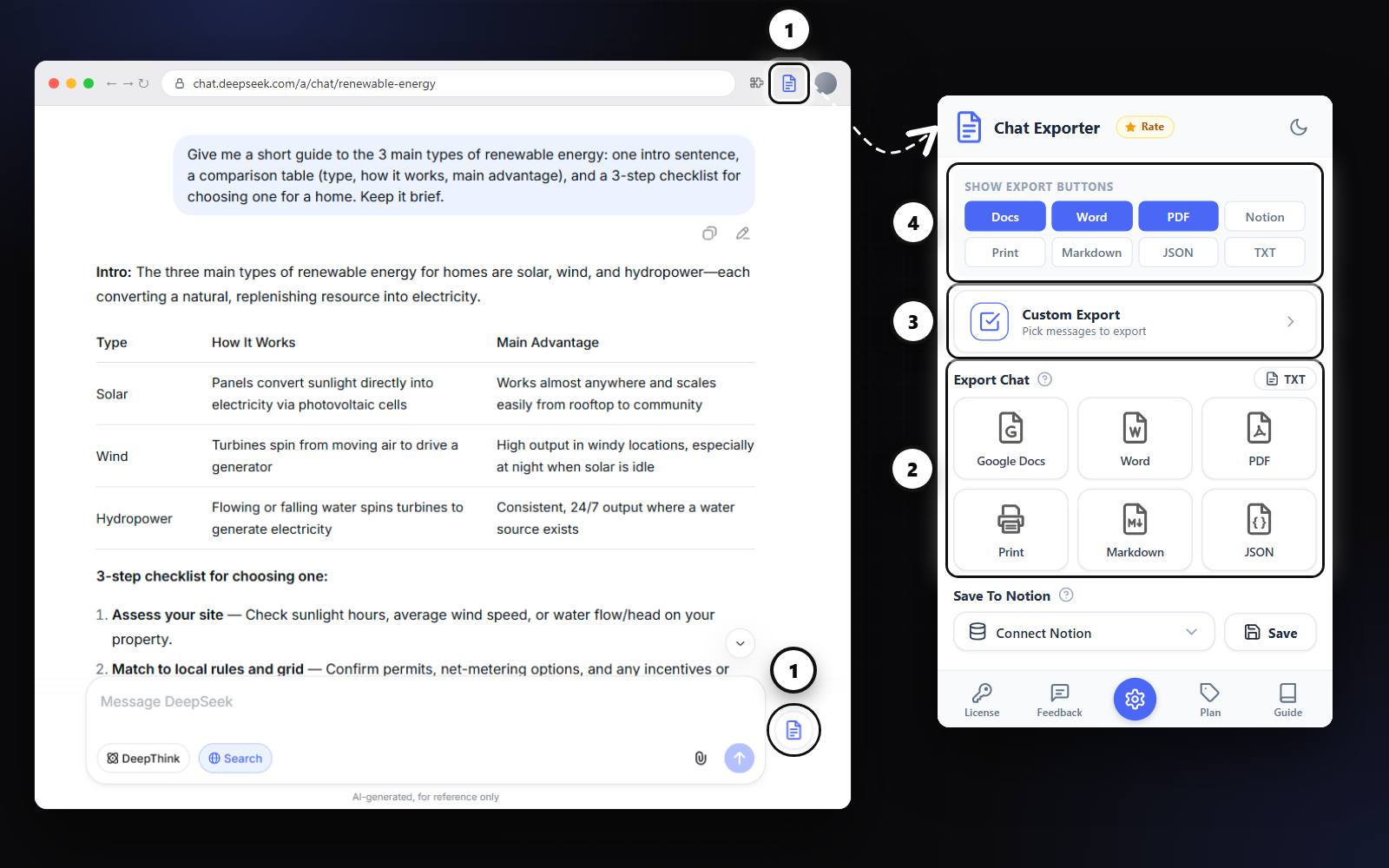
- Click the round Chat Exporter button next to the DeepSeek message box, or the extension icon in the Chrome toolbar.
- Under Export Chat, pick a format. Every prompt and answer goes into one document, in order.
Export only the messages you choose
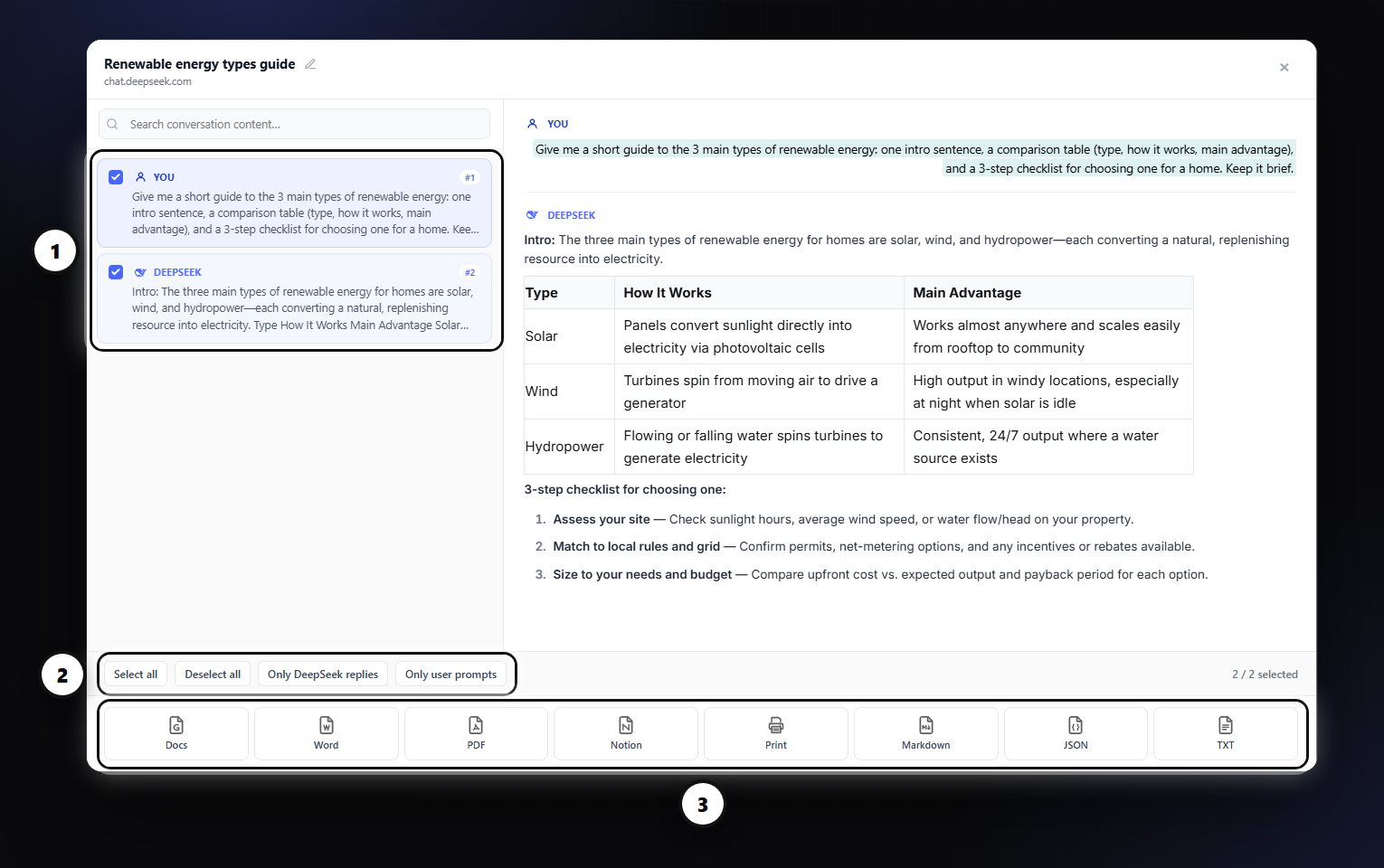
Long chats often contain detours. Custom Export lets you tick just the messages that matter, preview them, and export them together. Quick filters select everything, only your prompts, or only the DeepSeek replies.
What survives the export
- Long code blocks, complete and in a monospace font.
- Tables as real tables in both Notion and Docs.
- Math as equations, not raw LaTeX.
- Chinese, English and mixed text with the right characters, no garbled encoding.
- DeepThink (R1) replies, exported like any other answer.
FAQ
Does it work with a free Notion account?
Yes. The connection uses Notion’s standard integration, available on every Notion plan.
Does it work with DeepThink (R1) answers?
Yes. A DeepThink reply is exported like any other answer.
Can I export to Word or PDF instead?
Yes. The same extension exports to Word, PDF, Markdown, TXT and JSON as well.
Is my conversation stored?
Markdown and JSON are built inside your browser. PDF, Word, Google Docs, Notion and Print are built on our server, returned to you and deleted; the conversation itself is not kept.
Free plan: 3 exports every 24 hours, all formats included. No card needed.