
How to Export a Gemini Canvas Document to Word, PDF or Google Docs
Save the document you wrote with Gemini Canvas on its own, separate from the chat, as Word, PDF, Google Docs or Markdown.
Gemini Canvas is where a chat turns into an actual document: an essay, a report, a piece of code you edit side by side with the model. When you are done, you usually want that document, not the whole conversation around it.
Canvas export vs. chat export
| Canvas export | Chat export | |
|---|---|---|
| What you get | The current Canvas document only | Every prompt and answer in the chat |
| Best for | Reports, essays, drafts you will keep editing | Keeping the full discussion and decisions |
| Where the button is | Canvas toolbar | Under each answer, or the Chat Exporter panel |
Export the Canvas
- Open the chat on
gemini.google.comand open the Canvas. - In the Canvas toolbar, click the format you want (Google Docs, Word, PDF and more).
- The file is named after the Canvas title.
Canvas is an editor: once you change the text yourself, the model's version and yours are mixed. If you need a record of what Gemini wrote, export first and then edit in Word or Docs.
Exporting the conversation as well
Export a single Gemini answer
Under every Gemini reply the extension adds a small row of export buttons. By default you will see Google Docs, Word and PDF.
- Open the conversation on
gemini.google.com. - Find the answer you want to keep and click the button for the format you need.
- The file downloads (or opens in Google Docs) a few seconds later, named after the chat title.
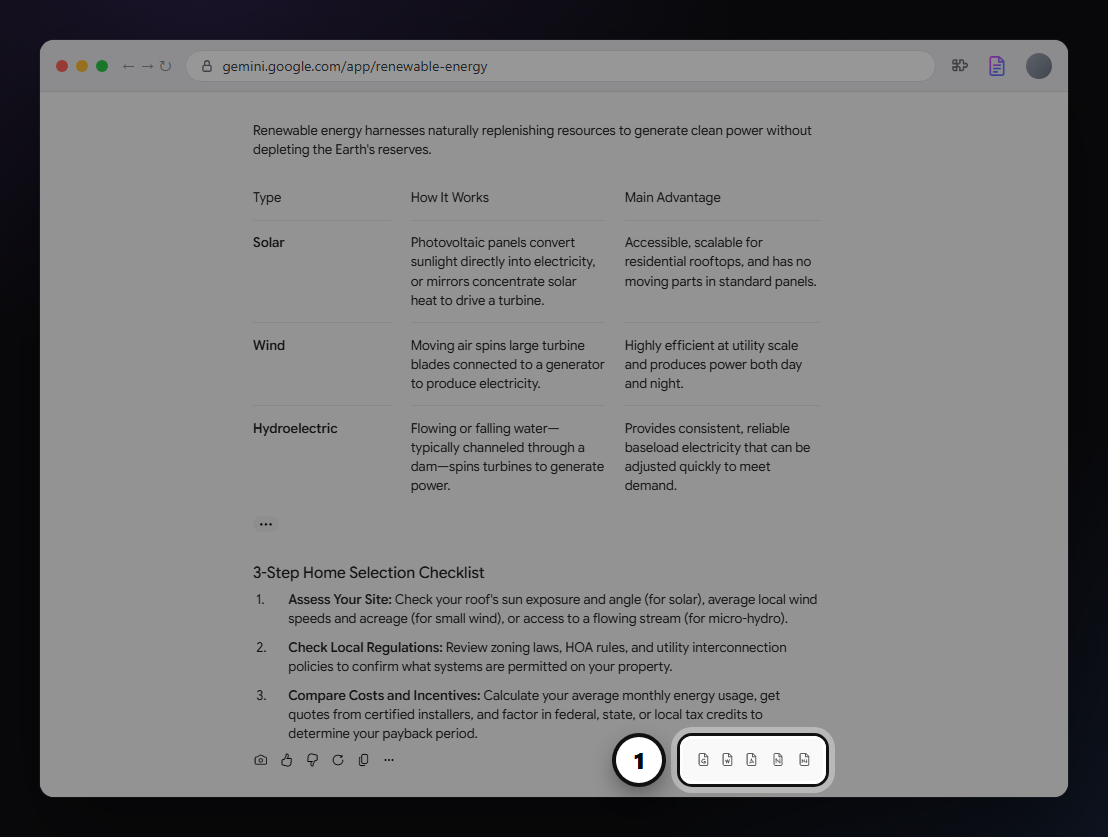
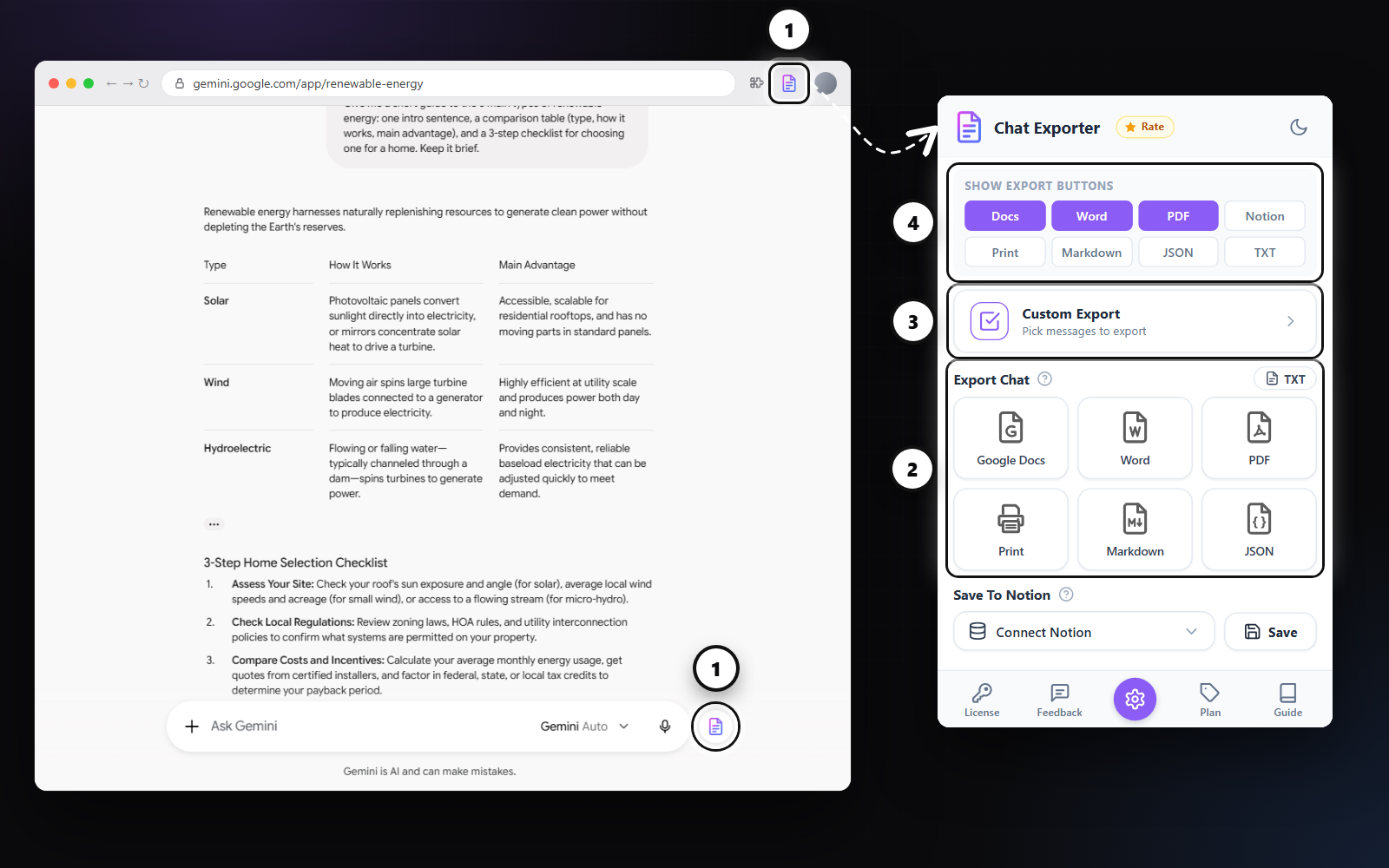
Want Markdown or Notion under every answer too? Open the extension panel and turn them on under Show Export Buttons.
Export the whole Gemini conversation
- Click the round Chat Exporter button next to the Gemini message box, or the extension icon in the Chrome toolbar.
- Under Export Chat, pick a format. Every prompt and answer goes into one document, in order.
Export only the messages you choose
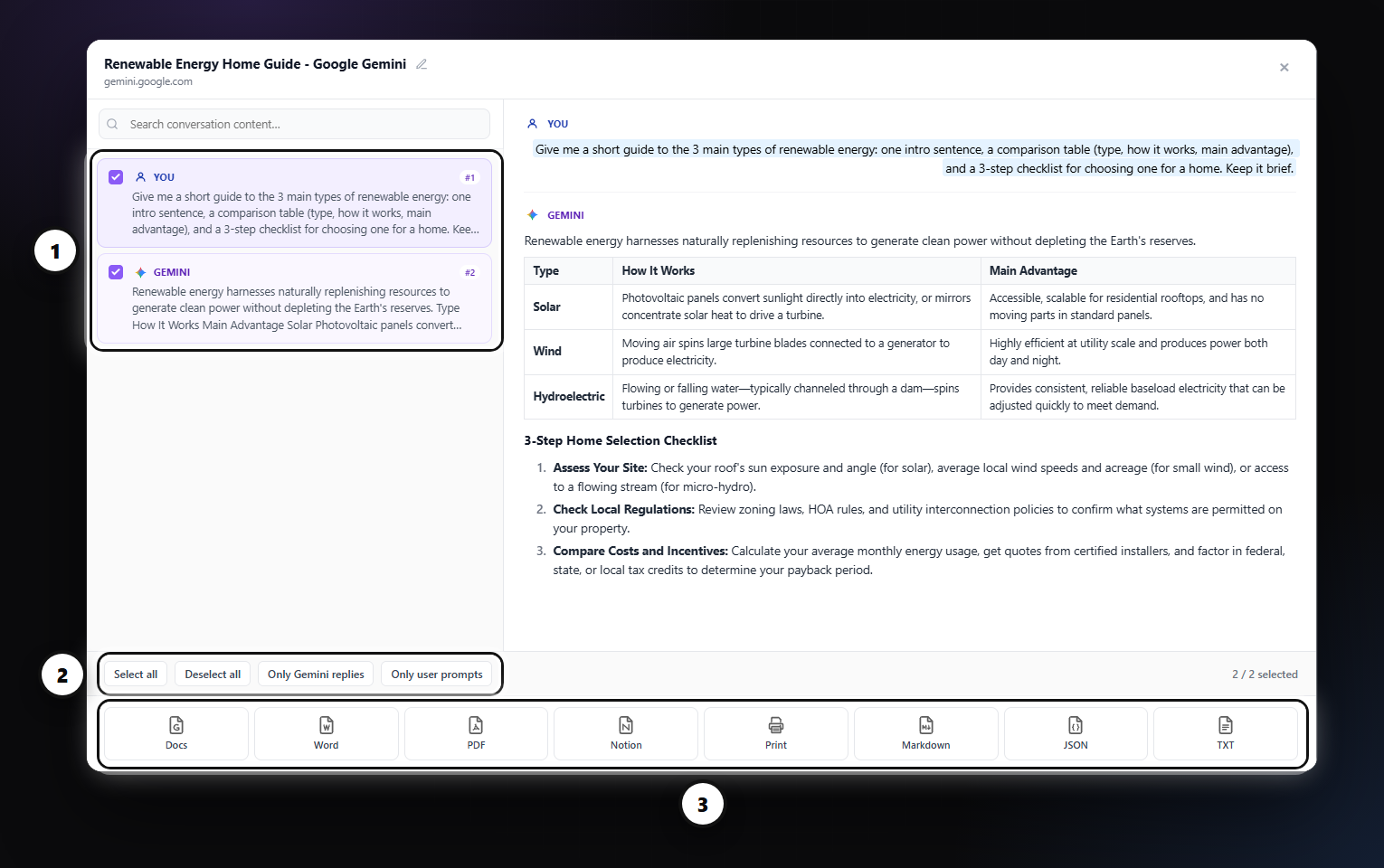
Long chats often contain detours. Custom Export lets you tick just the messages that matter, preview them, and export them together. Quick filters select everything, only your prompts, or only the Gemini replies.
FAQ
Does the Canvas export include the chat?
No. The Canvas buttons export only the Canvas document. Use the Chat Exporter panel for the conversation.
Can I send the Canvas straight to Google Docs?
Yes. Sign in with Google once and each export creates a new document in your Drive.
Is my conversation stored?
Markdown and JSON are built inside your browser. PDF, Word, Google Docs, Notion and Print are built on our server, returned to you and deleted; the conversation itself is not kept.
Free plan: 3 full-chat exports and 5 single-answer exports every month, all formats included. No card needed.