
How to Export NotebookLM Answers to Word or PDF
Save NotebookLM answers to Word, PDF, Google Docs or Markdown so you can edit, share and keep them outside your notebook.
NotebookLM is great for working through your own sources, but the answers live inside the notebook. Exporting them lets you turn a study session or a research summary into a document you can edit, print or share.
Export a single NotebookLM answer
Under every NotebookLM reply the extension adds a small row of export buttons. By default you will see Google Docs, Word and PDF.
- Open the conversation on
notebooklm.google.com. - Find the answer you want to keep and click the button for the format you need.
- The file downloads (or opens in Google Docs) a few seconds later, named after the chat title.
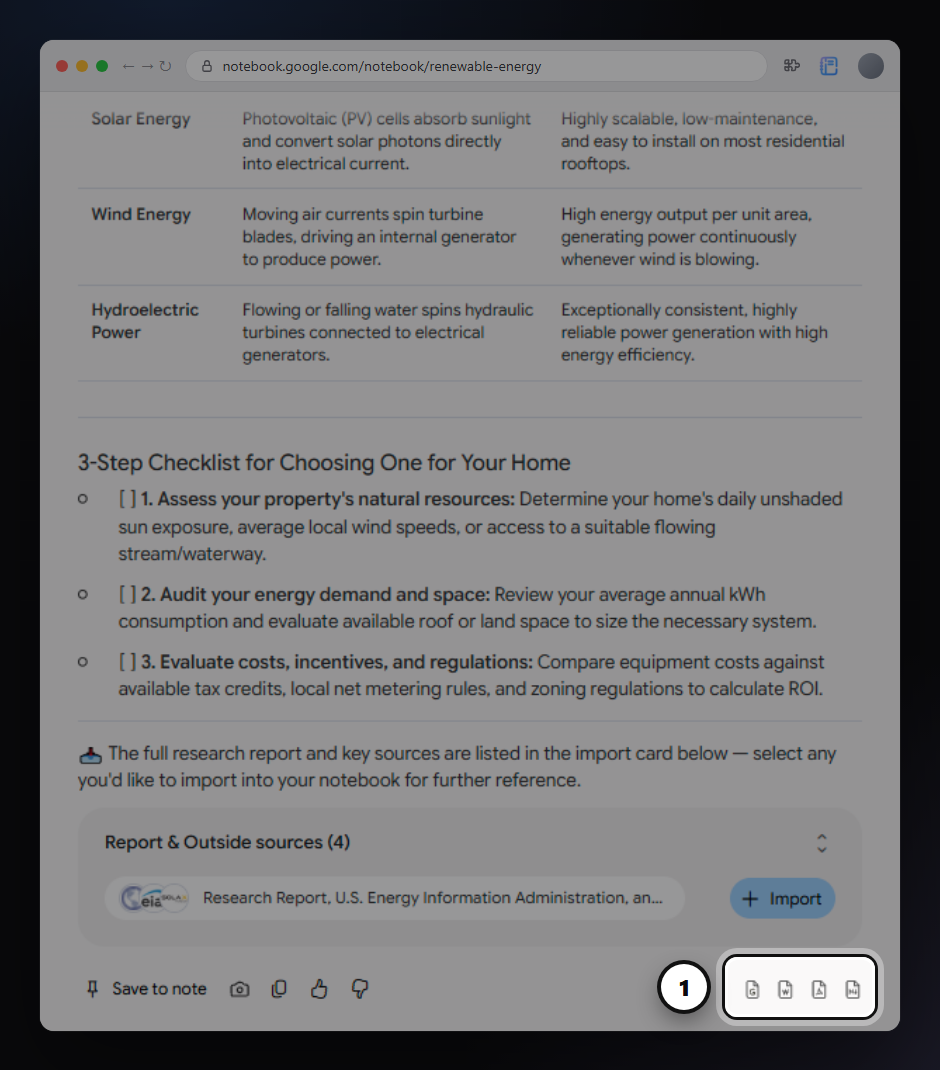
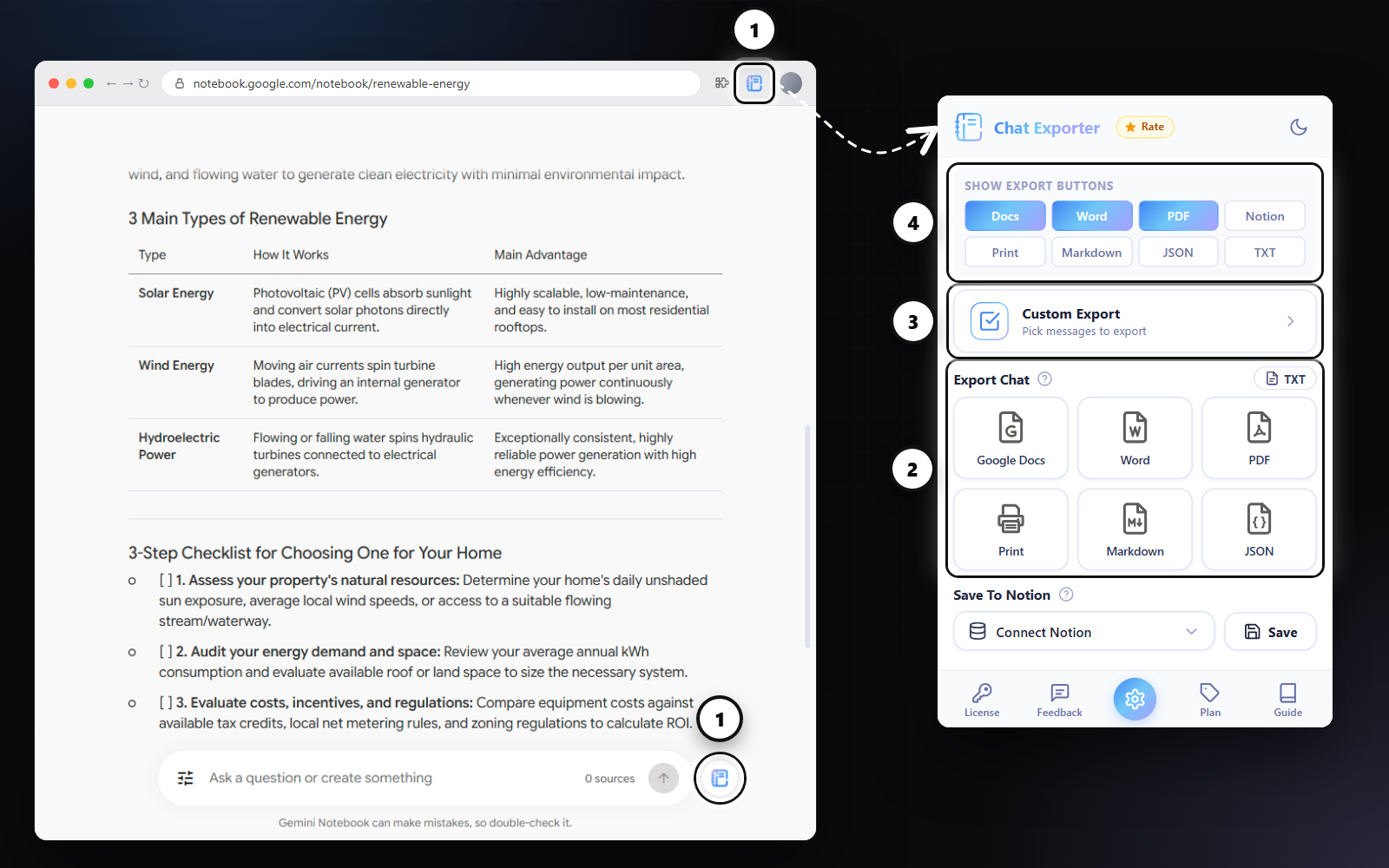
Want Markdown or Notion under every answer too? Open the extension panel and turn them on under Show Export Buttons.
Export the whole NotebookLM conversation
- Click the round Chat Exporter button next to the NotebookLM message box, or the extension icon in the Chrome toolbar.
- Under Export Chat, pick a format. Every prompt and answer goes into one document, in order.
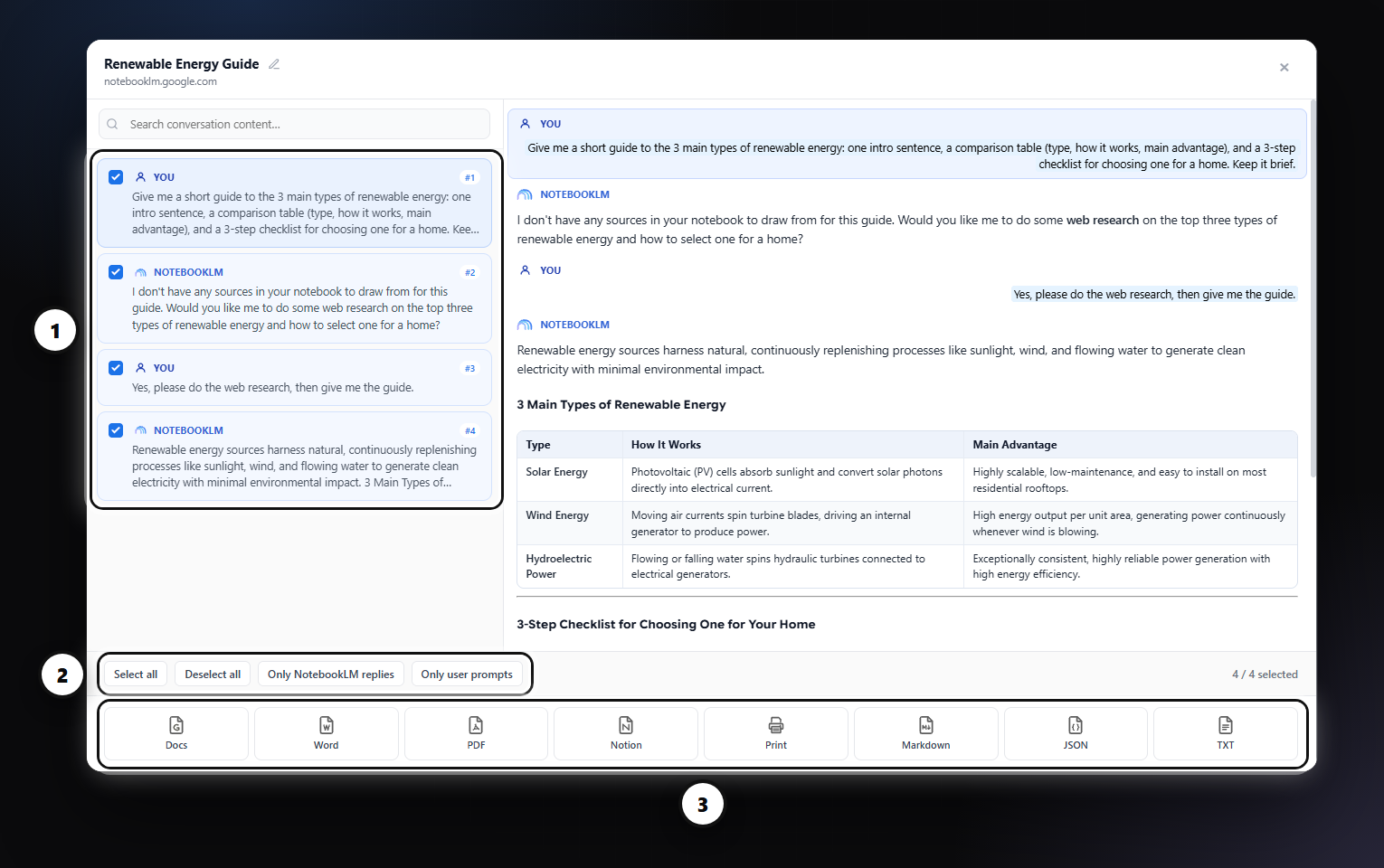
Export only the messages you choose
Long chats often contain detours. Custom Export lets you tick just the messages that matter, preview them, and export them together. Quick filters select everything, only your prompts, or only the NotebookLM replies.
Good for study notes
Export to Word or Google Docs to add your own notes around the answers, or to PDF to print and review offline.
Which format should you pick?
| Format | Best for |
|---|---|
| Word (.docx) | Editing, reports, sharing with people who live in Office. Headings, tables, code and equations stay editable. |
| A fixed, print-ready copy of the NotebookLM answer to send or archive. | |
| Google Docs | Saved straight to your Google Drive, ready to share and comment on. |
| Notion | Keeping answers next to your notes and projects. |
| Markdown | Obsidian, GitHub, static sites and other plain-text tools. |
| TXT | Plain text with no formatting at all. |
| JSON | Developers: every message with its role, ready to process in code. |
| Printing directly, or "Save as PDF" from the browser dialog. |
FAQ
Is my conversation stored?
Markdown and JSON are built inside your browser. PDF, Word, Google Docs, Notion and Print are built on our server, returned to you and deleted; the conversation itself is not kept.
Free plan: 3 full-chat exports and 5 single-answer exports every month, all formats included. No card needed.